
This article was created with the AI assistant Claude and published by Peter Hoenig.
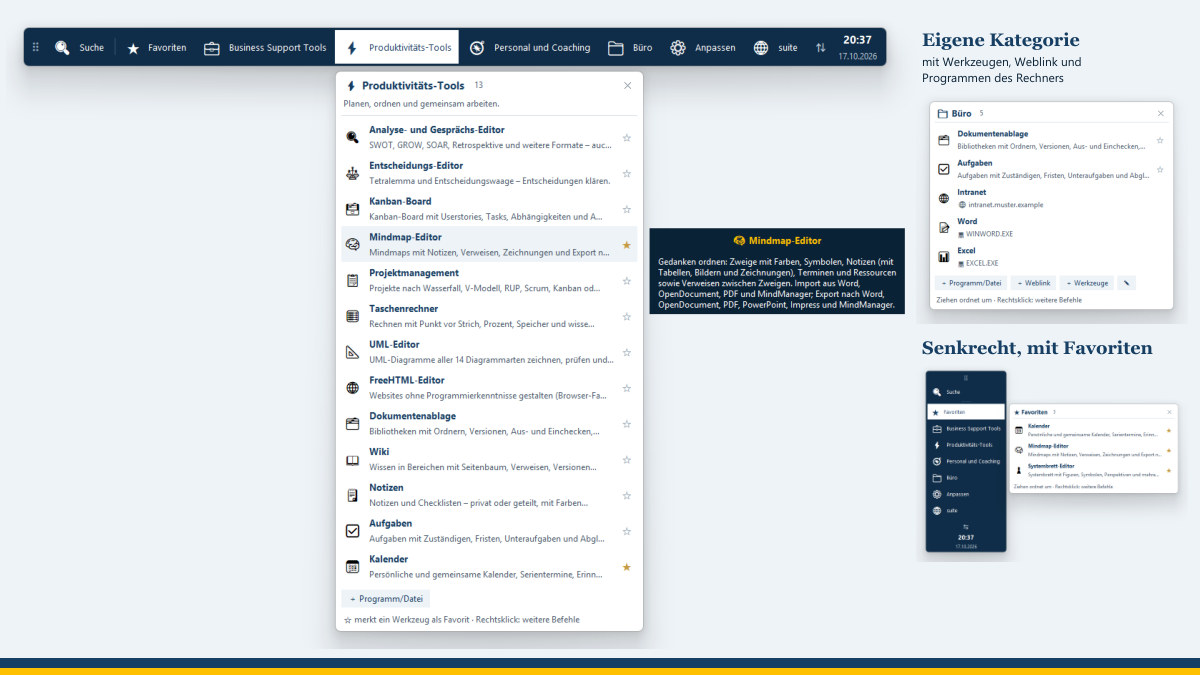
The MC4Y Suite has grown over the past few months: a portal for working together, tools for businesses and coaching, questionnaires, games and a taskbar for the desktop. In this manual I describe how you work with it – from opening a tool for the first time to the calendar in your own calendar app. I also say what is different on Windows, macOS and Linux and in the various browsers, and where I have not yet been able to test something myself. How to set up the suite on a computer or server is described in the installation manual.
This manual is as of 12 November 2026: MC4Y Suite 0.4.60, MC4Y Taskbar 1.7.8. Every tool shows its own build version at the top right of its header.
What is part of the MC4Y Suite?
The suite is not a single program but a construction kit. You can use each part on its own or everything together.
Tools, questionnaires and games
Every tool is a single HTML file. It runs in a current browser, without installation and without signing in. The suite’s catalogue sorts them into four categories:
- Business Support Tools: running and managing a business – model, master data, accounting, sales, customers, projects, IT service.
- Productivity tools: planning, organising and working together.
- People and coaching: coaching, constellation and reflection tools – reflection and conversation models, not diagnostic instruments.
- Games: small games for a break in between, plus simulations to think about.
A fifth category, “Other”, takes in new tools that have not yet been sorted in.
The portal for working together
If you work in a team, you install the MC4Y Productivity Suite on a server of your own or on a single computer. The portal in the browser comes with seven modules: document library, wiki, notes, tasks, calendar, CMDB and solution database. All tools open and save there via the shared storage, with permissions, versions and locks.
The taskbar for the desktop
The MC4Y Taskbar is a small program for Windows, macOS and Linux. It floats above all windows and opens the suite’s tools with one click – plus your own programs, files and web links.
Where do I find the tools?
- On the website: the released tools are under Resources, all others under Experimental. One click opens the tool in the browser.
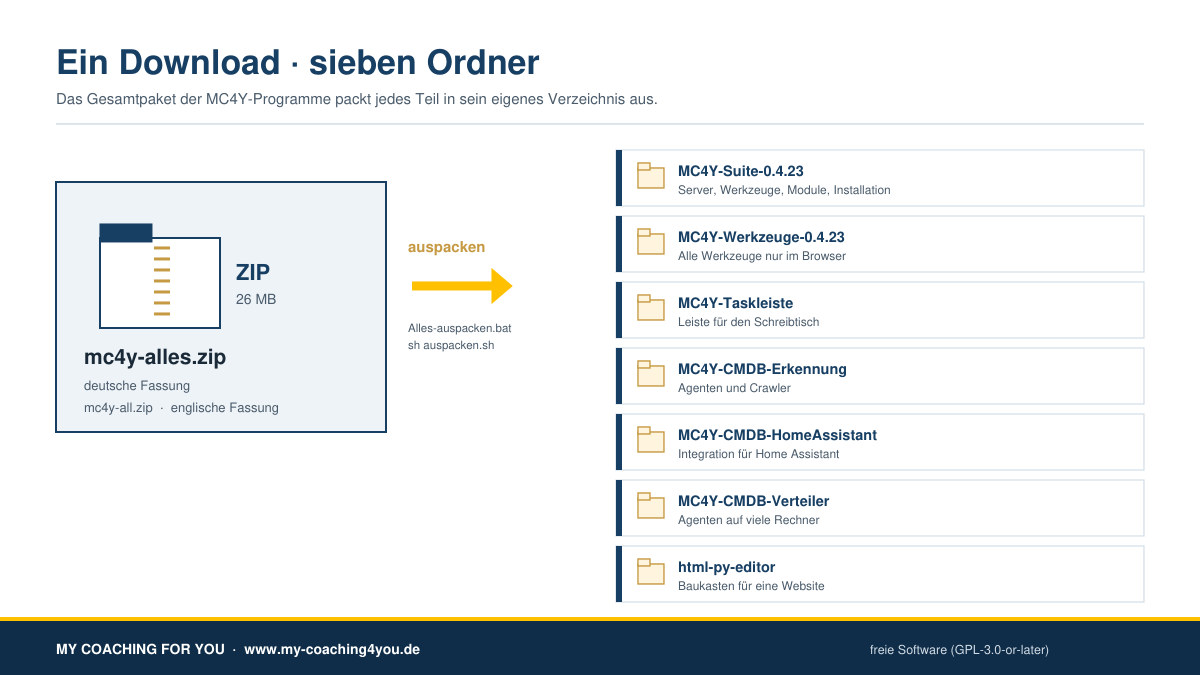
- As a file: every tool can be downloaded and then runs on its own, without the website. All programs together are available as a complete package in one download.
- In the suite: in the portal’s toolbox or in the taskbar.
What do “released” and “Experimental” mean?
Currently the mind map and the 3D systemic board are released. All other tools are still beta and not fully tested; the questionnaires have not yet been validated. I test every new version with an extensive test bench, but a beta tool can still contain errors. So please back up your files regularly. I welcome bug reports and suggestions for improvement.
Which operating system and which browser?
The tools and the portal run in every current browser: Edge, Chrome, Firefox or Safari. Differences arise mainly when saving and with features that work with whole folders. The following overview shows how I test before every new version.
| Use | Windows | Windows Server | macOS | Linux |
|---|---|---|---|---|
| Tool via the website | Chromium (Edge/Chrome) and Firefox | – | WebKit browser engine (as in Safari) | Ubuntu in WSL: Firefox, Chromium, WebKit |
| Tool opened as a file | Chromium with the real Save and Open windows | – | WebKit | Ubuntu in WSL: Firefox |
| Handovers between tools | Chromium and Firefox | – | WebKit | Ubuntu in WSL |
| Tools in the suite and portal | Edge, with and without the Save window | own trial installation; IIS additionally on my own PC | WebKit | Ubuntu in WSL: Chromium, Firefox, WebKit |
| MC4Y Taskbar | my own use on Windows 11, test bench | – | not yet confirmed on a real Mac; dropping with the mouse only against a simulated Mac environment | Ubuntu in WSL with a virtual screen |
What does this mean for you?
- Windows and Linux: every way of use in the overview is tested there – on Linux in a real Ubuntu, not on every Linux distribution.
- macOS: I test Safari with its browser engine WebKit, not on a real Mac. The browser engines are the same; the operating system’s windows are not. The tip on how to find saved files again in the “Downloads” folder comes from a test on a real Mac (see below).
- iPhone and iPad: all browsers there work with WebKit; Chrome on the iPhone, too, behaves like Safari. I have not tested this on real devices.
- Firefox in the suite on Windows: if your suite’s certificate is installed in Windows, Firefox only uses it once the setting
security.enterprise_roots.enabledis switched on. This is usually set up by the person who looks after the suite.
What is explicitly not tested?
- Safari on a real Mac as well as real iPhones and iPads,
- operation with your finger on real phones and tablets (it is tested in simulated screen sizes with touch),
- the taskbar on a real Mac and on real Linux computers,
- network drive and calendar sync with the individual programs (Explorer, Finder, file managers, Thunderbird, Apple Calendar, DAVx⁵) – more on this in the section on the network drive.
How do I use a tool?
All tools follow the same layout. At the top is the header with the buttons, below it the work area, depending on the tool with a bar on the left for elements and one on the right for properties. Depending on the tool, you will find “New”, “Open”, “Save”, “Save as”, a menu for exporting, “Example” and “Help” at the top.
Opening and saving in Chrome and Edge
Chrome and Edge allow a web page, with your consent, to write directly to a file or folder on your computer. The first time, “Save” opens your operating system’s save window; after that the tool saves to the same file. “Open” shows the usual window for selecting a file.
On the Mac, Chrome and Edge show the “Save As” window small at first. The arrow ˅ next to the file name expands it to show the folder tree and “New Folder”.
Opening and saving in Safari and Firefox
Safari and Firefox do not offer this interface. There, the tools save via the browser’s download – your data still stays on your device:
- Click Save or Save as.
- The Save file window suggests a name. Change it if needed and confirm with Save. While the window is open, “Save file: please confirm the name in the window …” appears at the bottom.
- The tool then reports “Saved in the browser’s downloads folder” with the file name.
The first time you save, the tool asks for the name; after that it saves without asking again; “Save as” always asks. If you cancel, the tool reports “Not saved – cancelled.” If you leave the page without having saved, the browser warns you. The same applies to Chrome when a tool is opened over an unencrypted connection (http).
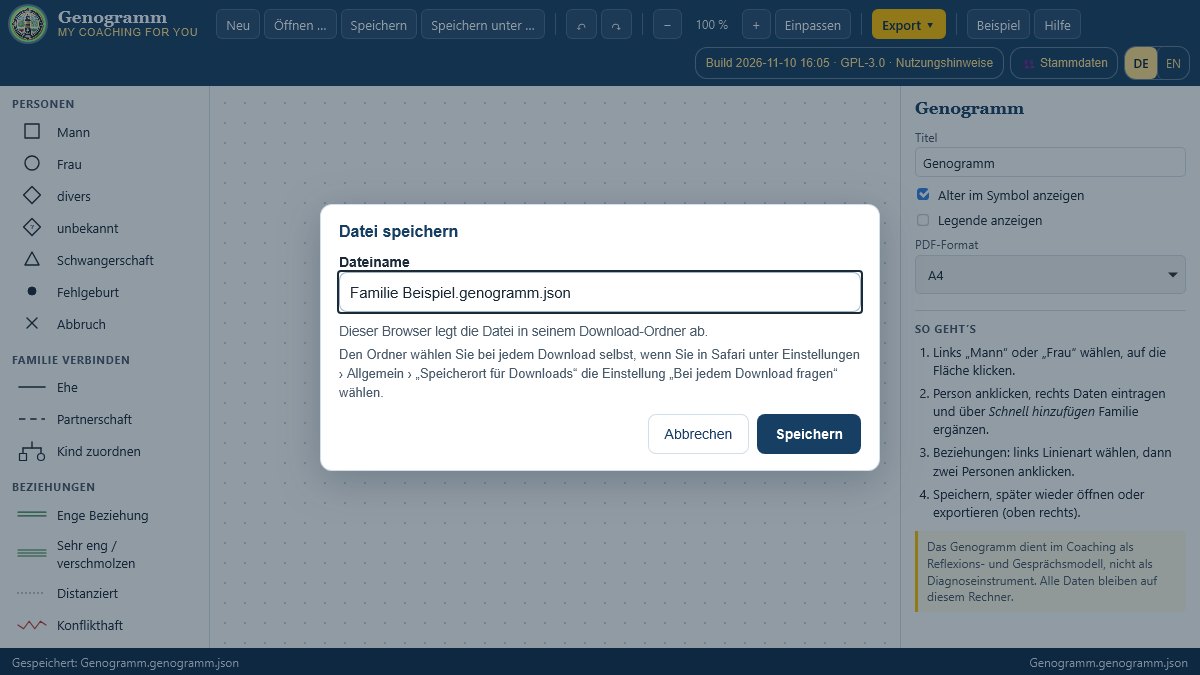
Choosing the storage location yourself: in Safari, under Settings › General, set “File download location” to “Ask for each download”. In Firefox, under Settings › General › Downloads, switch on “Always ask you where to save files”.
Finding files again on the Mac: in the Open window, press Command + Shift + G and enter ~/Downloads.
iPhone and iPad: you will find saved files in the “Files” app under “Downloads”.
More on this in the post MC4Y tools on Mac and Linux.
What only works in Chrome and Edge?
Some tools work with a whole folder: the 8EM Modeller with its model folder, the accounting tool with its receipt filing and the mind map with a project folder. These folder features are only available in Chrome and Edge; the tool tells you so at the relevant point. In Safari and Firefox you work with single files – in the 8EM Modeller, for example, with “Create as a single file”. The FreeHTML Editor opens and saves a website project there as a ZIP file.
Files and formats
Every tool saves to a file of its own, for example .genogramm.json or .kanban.json. A file you saved in Safari opens just as well in Chrome, Edge or Firefox – and vice versa, on every operating system. Many tools also output their result, depending on the tool as PDF, image, PowerPoint, Word, Visio, OpenDocument or CSV.
Your data and browser storage
Without the suite, all entries stay on your device; the tool transmits nothing. I name the exceptions for the tool concerned: the company search in the Vertriebs-Navigator and the team session in the “Analysis and conversation” tool.
Merely opening a tool creates nothing in the browser. Only when you change a view or explicitly have something remembered in the browser does the tool store anything there. What is stored where is set out in the privacy policy.
German or English
At the top right, next to the build version, “DE” and “EN” switch the language – immediately, without reloading and without losing data. If you have not made a choice yourself, the tool follows your browser: German if German is your preferred language, otherwise English. From the English website, the tools open in English straight away. The interface, help, messages, printouts, exports and the built-in examples are translated; your own texts stay as you wrote them. The choice is only stored if you click “DE” or “EN” yourself – and only in your browser. Even in English, the accounting tool stays with German tax law. More on this in the post All tools are now available in English too.
Help, licence and liability
The “Help” button explains how to use the tool. The button with the build version at the top right (“Build … · GPL-3.0 · Terms of use”) shows the licence and the disclaimer. All tools are free software under the GNU General Public License, version 3 or later. Every tool is an aid for reflection, conversation and documentation, not a diagnostic instrument, and it does not replace psychotherapeutic, medical, legal or other professional advice.
Master data in every tool
In almost every tool, the “👥 Master data” button is at the top. One click shows the master data tool directly inside the tool. If you link a tool to it, it offers your people, organisations, units, roles, cost centres and locations in input fields; after that the master data lead. As long as you link nothing, every tool works on its own as before. Whether the buttons are offered at all is something you set for each tool by right-clicking “👥 Master data”.
On phone and tablet
The board tools – the systemic board, the 3D tools and most coaching boards – have their own controls for narrow screens (up to 900 pixels wide or 500 pixels high):
- The header is collapsed to one line; “☰” expands it, for example for the export menu.
- Two fixed buttons open the bars as windows: on the left “+ Elements” (depending on the tool “Figures”, “Inputs” or “Areas”), on the right “✎ Properties”. On the phone the window comes up from the bottom, on the tablet from the side.
- Placing a figure: in the 2D tools you tap the element in the bar. In the 3D tools, the genogram, the lifeline and the resource tools you tap it and then the spot on the board.
- Swiping on the drawing area rotates or moves the board instead of scrolling the page; you zoom with two fingers.
The questionnaires also run on phones and tablets. I tested this in simulated screen sizes with touch, not on real devices.
The suite portal
This section and the next two only apply if an MC4Y Suite is running in your organisation. The person who looks after it gives you the address and your user name.
How do I sign in?
Open the suite’s address in the browser. On a server it looks something like https://server/; on a single computer it is http://127.0.0.1:8090/. Sign in with your user name and password.
- Unencrypted connection: if your suite also allows
http://, the sign-in page points out that your user name and password then travel across the network unencrypted, and links to the encrypted address. Usehttps://wherever possible. - Browser warning: if, with
https://, the browser reports that the connection is not private, your suite has a certificate of its own. Compare the fingerprint with the one on the “Other devices” page, or have the person who looks after the suite install the certificate. - Signing in with your Windows account: if domain sign-in is switched on, you sign in with your Windows name – as
name,name@company.localorCOMPANY\name. On a Windows server with IIS there may also be the button “Sign in with the signed-in Windows account”. - Forgot password? There is no reset by e-mail. The person who looks after the suite creates a recovery code; it is valid for 30 minutes and only once. On the sign-in page you click “Forgot password?” and enter your user name, the code and a new password. All your other sessions then end. For accounts in the Windows domain, you change the password as usual on a Windows computer in the domain.
- Protection: after five failed attempts the suite locks the sign-in. It sets exactly one cookie, the session key.
The “Workspace” start page
After signing in, the “🏠 Workspace” opens. There you see your appointments for today and tomorrow, due tasks (including those from the tools), pinned notes, recently edited documents, wiki pages and tool documents, your favourites and notifications. The search finds documents, wiki pages, notes, tasks, appointments (not private ones) and tool documents.
The toolbox: tiles or taskbar
The toolbox only shows the tools you are allowed to use – arranged by the catalogue’s categories, with the recently edited documents at the top. One click opens a document in the right tool; with the star you mark a tool as a favourite.
Whether you see the tools as tiles or as a taskbar is up to you. The tiles show a short description, and the full one when you move the mouse over them. The taskbar in the browser at first shows only the categories; one click expands their tools. There is also a search, favourites you can drag and a clock that takes you to the calendar. The bar lies horizontally or vertically and can be moved by its handle; on a phone it is always at the bottom. You switch it on under “Your account” › “Appearance”; it closes with the browser window.
With “⚙ Customise categories …” you drag categories into a different order, hide them or create custom categories with tools and web links. You drag a link from the browser directly onto a category; it becomes a web link. Your customisations apply to your account – in the browser as well as in the MC4Y Taskbar program.
In Edge and Chrome, the suite can also be installed as an app, with its own window and icon.
Language, notifications and other devices
- Language: at the top right, “DE” and “EN” switch the portal, administration and open tools together. Without a choice, your browser’s language applies. The interface is translated, not your content – only the wiki and the solution database keep a German and an English version of each page.
- Bell 🔔 (button “Notifications” at the top of the header): it tells you, for example, that someone has assigned you a task, invited you to an appointment or shared a note with you, plus replies, declines and comments.
- Other devices: at the bottom of the portal, this page shows all addresses of the suite with a QR code, a copy button and the certificate’s fingerprint. On a phone, scan the QR code or type the address in full with
https://– and do not choose a search suggestion. On a phone, the IP address is usually a more reliable way than a name.
Your account
Under “Your account” (in the portal also “My account”) you set, among other things:
- Appearance: taskbar in the browser on or off.
- Network drive and calendar: the addresses for the drive and the calendar app and your access passwords per device (see below).
- E-mail notifications: none, every notification immediately or once a day as a summary, in German or English; plus “Appointment reminders by e-mail as well”.
- Desktop taskbar and app: download the MC4Y Taskbar program with the address already filled in. You also see and disconnect the taskbar’s connected devices in your account.
Who may do what?
The administration assigns permissions via permission groups, in three levels: “Read”, “Read and write” and “Full access” – for a whole tool or for areas such as a library, a wiki space or a shared calendar. If you belong to several groups, the highest permission applies for each tool; the “Who may do what?” view shows where it comes from. Whoever administers the suite therefore does not automatically see all content. With domain sign-in, the permissions come from the groups in your directory.
Signing out
When you sign out, the suite clears away the tools’ intermediate states in your browser – drafts, remembered files, backups. On a computer that only you use, you can opt out of this. If another person signs in on the same browser, the suite always clears up.
The modules in the portal
Document library
Libraries with folders and custom columns. You upload files by dragging them; if a document already exists, a new version is created. The library shows PDFs, images and texts in a preview.
- Versions: as a draft (0.1) or released (1.0), with a comment, comparison and restore.
- Check-out and check-in: if you are going to work on a document for some time, you check it out; the others see that it is being worked on.
- Organising: classification from “public” to “secret”, keywords, categories and saved views.
- Searching: also within the content of Word, Excel, PowerPoint and OpenDocument files.
- Archive and recycle bin: archived documents are read-only, with a retention period and checksum; you restore deleted items from the recycle bin.
- “Used in”: shows in which tool documents a document is attached – as far as you are allowed to read them.
Wiki
Pages in Markdown, arranged as a tree and moved elsewhere by dragging. You write links as [[Page]], [[Space:Page]] or [[dok:number]] for a document; the wiki shows backlinks. Clicking a link without a target creates the page; when you rename a page, the wiki adjusts the links. Plus versions with comparison, a lock while editing, a recycle bin, printing and export as PDF or Markdown. Every page exists in German and English; if the original changes, “⚑ Check translation” appears.
Notes
Notes and checklists with colours, keywords, pinning and links to documents, wiki pages, tools and tasks. A note is private until you share it with people or groups – for reading or editing. Every tool in the suite has “🗒 Quick capture”: you write a note or task, if you wish with a link to the open document, and save with Ctrl + Enter.
Tasks
Tasks with assignees, priority, due date, subtasks, comments and attachments from the document library, in views such as “Today”, “This week” and “Overdue”. Cards from the Kanban board and work packages from project management that are assigned to you appear in the same list. If you complete something there, the card moves on according to the board’s rules.
Calendar
A personal “My calendar” and shared calendars, in day, week, month and list view. Series repeat daily, weekly, monthly or yearly, with an end, a number of occurrences and exceptions. Invitees answer invitations by accepting or declining. Others see private appointments only as “busy”. Deadlines from tasks, Kanban and projects can be shown; appointments can be imported and exported as .ics. A subscription link adds the calendar to other programs for reading; it works without signing in, shows private appointments as “busy” and can be switched off.
Your browser shows reminders as long as the suite is open – if you wish, they also come by e-mail.
CMDB
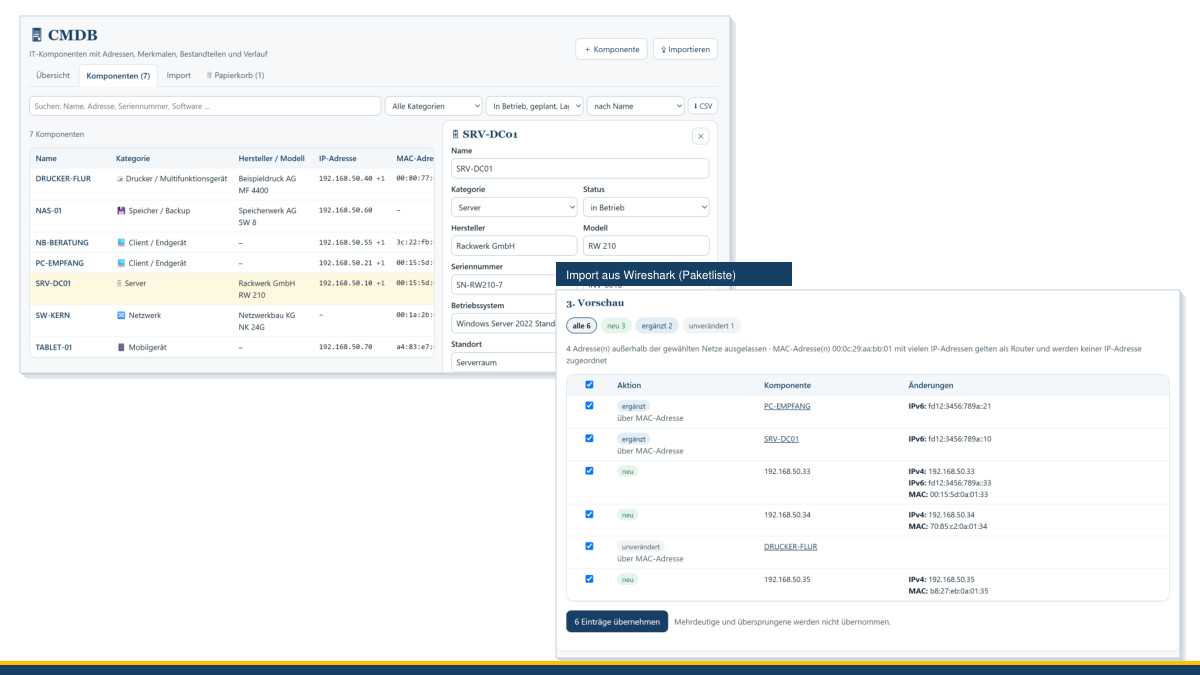
The CMDB shows your IT: servers, workstations, printers, network and storage devices with manufacturer, model, serial number, IP and MAC addresses, operating system, software, costs, relationships and history. You record by hand or import – from Excel or CSV, Active Directory, DHCP and Wireshark, each with a preview; anything entered by hand is not overwritten. With full access, agents and crawlers fetch the inventory automatically (tab “📡 Discovery”, immediately with “⟳ Collect all now”). Those responsible, locations and cost centres come from the master data.
Solution database
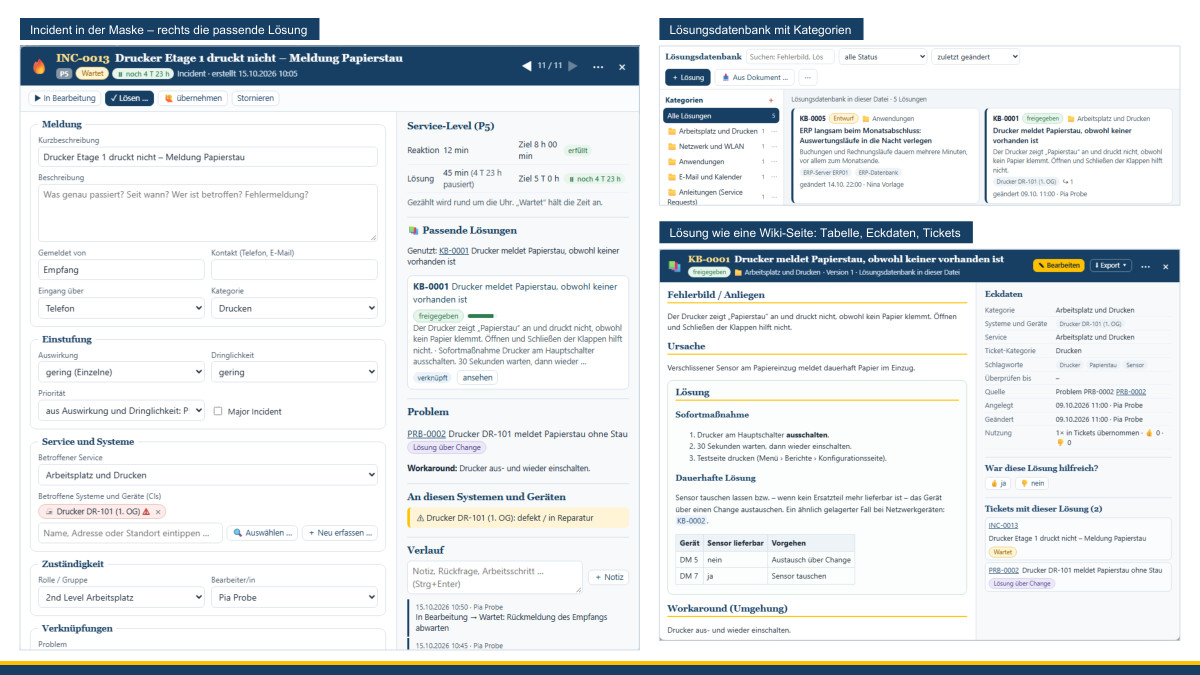
Proven solutions as in a wiki: symptom, cause, step-by-step solution with images, workaround, categories, links, versions and attachments – in German and English. When a ticket is recorded, the ITSM tool suggests suitable solutions and, with a tick, adopts resolved tickets as drafts. Solutions can be imported from Word, PDF, PowerPoint and LibreOffice and exported to them.
Tools in the suite: working together
In the suite, all tools work with the shared storage on the server.
Opening, saving and versions
Instead of your computer’s file window, a window of the suite opens: you choose a folder and document, and a double-click opens it. Every save keeps the previous version. If your browser has no save window of its own (Safari, Firefox, or Chrome over http), the window also offers “On this computer …” (download) and “From this computer …” (select a file).
When someone else is editing the document
If you open a document that someone is currently editing, you get it read-only – with a notice of who is editing it and since when. You can save your own changes as a copy. When the document becomes free, the suite reports “It is free now” within half a minute at the latest. After an hour without input, the suite asks and otherwise releases the document. People with full access can take over an editing session; the other person learns of this immediately.
At the bottom right, a small display shows which suite and which account you are working with; “–” shrinks it. On phones and tablets only the 🗄 button appears.
Attachments from the document library
On a tool’s “MC4Y Suite” panel, you attach documents with “📎 Attachments from the document library” – select, search or upload anew. Only the reference is stored; what opens is always the current version.
Handovers between tools
Tools pass results to one another: invoices from project management, won customers from the Vertriebs-Navigator and incoming invoices from the Kunden-Navigator appear in the accounting tool; the goal system and the pain points pass their results to the 8EM Modeller at the press of a button. Handovers can only be read by the tools involved.
Master data and projects together
If several people change different master data entries at the same time, the suite merges the changes; other people’s changes reach you within half a minute at the latest. If you rename a location or a cost centre, all modules show the new name. A deleted entry remains as a name and is marked as “missing”.
In project management, your role – project manager, team member or read-only – follows from your permission in the suite and your role in the project. If two people change the same entry, the tool shows both states. More on this in the post Project management as a team.
Network drive, calendar app and e-mail
The document library as a network drive
The suite’s libraries appear in Windows Explorer, in the Mac Finder or in the file manager on Linux like a drive – with the same permissions as in the portal. The address is shown under “My account › Network drive and calendar”; it has the form https://server/dav.php/dokumente/, and each library is a folder.
- Signing in: with your suite user name and an access password – never with your sign-in password.
- Saving: every save results in a new version. The safe saving of Word and Excel with temporary files results in exactly one version; helper files do not end up in the library.
- Deleting: deleted items go to the suite’s recycle bin.
- Locks: a file opened via the drive is locked for others; the drive does not accept a document that is checked out in the suite.
- Windows: Windows only sends the password of a network drive over an encrypted connection with a trusted certificate. Your suite therefore needs
https://with an installed certificate. On a single-user computer without a certificate, the suite shows a drive address of its own that only works on that computer.
Access passwords per device
Under “My account › Network drive and calendar” you create an access password for each device, with a name such as “Laptop” or “Phone”. The suite shows it only once and afterwards stores only a check value. If a device is lost, you revoke exactly that one access password; the administration can revoke all access passwords of an account at once.
The calendar in your own app
Calendar apps that support the CalDAV standard are added with the address https://server/dav.php/; they find your calendars themselves. New appointments, changes, series with exceptions and reminders are synchronised in both directions. Other people’s private appointments only appear as “busy”. If your suite runs on a Windows server with IIS, enter the full address from “My account”, not just the server name. Outlook does not support CalDAV; there you use the subscription link for reading. Appointments from other people’s calendars to which you are only invited do not appear via CalDAV.
The sync is built according to the rules of the standard and tested with a test bench of my own. I have not yet tried it with Thunderbird, Apple Calendar or DAVx⁵ on Android.
Notices by e-mail
If the administration sets up a mail server, you choose in “My account” whether you receive notifications by e-mail: none, each one immediately or once a day, in German or English. If you wish, reminders of your own appointments and invitations are added. The suite sends every five minutes, exclusively through the mail server that has been entered. Mail providers that only allow sign-in via OAuth are not supported. More on this in the post Network drive, calendar sync and e-mail notices.
Business Support Tools
Tools with which you describe, run and manage a business. The tools for architecture and IT operations are aids for conversation and decision-making; they do not replace specialist advice in individual cases, legal advice or operational implementation.
8EM Modeller
The 8EM Modeller maps your company onto the eight levels of my 8-Level Model – vision, mission, strategic goals, operational goals, capabilities, processes, organisation, and tools and IT – and links the levels with each other. Plus as-is and to-be pictures, graphical editors for processes, organisation chart, data model and UML, cost centres, data protection, architecture management and an analysis that turns questions into reports. It adopts results from the IT survey form, IT map, SIPOC, goal system and pain points. In Chrome and Edge it works with a model folder, in Safari and Firefox with a single file.
Master data
The master data tool is the shared data set of all tools: people and organisations with address and contact details, organisational units, roles, cost centres, cost types and locations – as a table, organisation chart and relationship network. It imports lists from Excel or an address book (CSV, vCard) and analyses staffing and data quality. Tools link their people and roles to it; duplicates can be merged. An entry can also be created directly in the tool with “+ Create …”.
Accounting
The accounting tool for small businesses: record receipts (also as XRechnung or ZUGFeRD), issue invoices with a check of the mandatory details, cash-basis income statement or double-entry bookkeeping, advance VAT return with ELSTER file, reconcile bank statements, cost centres and dunning, DATEV export and reports as PDF. Private tax-relevant receipts are kept separate. Receipt filing in a folder is only available in Chrome and Edge. The accounting tool does not replace tax advice.
Project management and project analysis
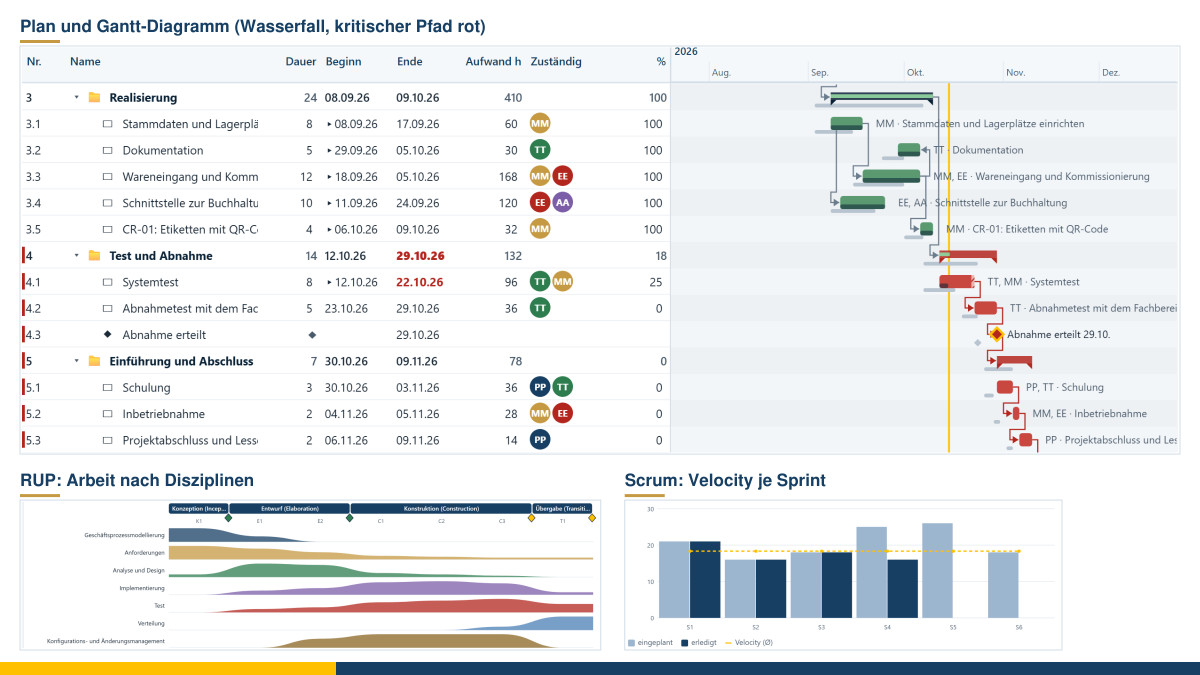
Project management plans and controls projects using waterfall, V-model, RUP, Scrum, Kanban or hybrid: work breakdown structure, Gantt chart with dependencies and critical path, backlog and board, times, costs by cost centre and cost type, risks and changes. Billing is by effort, fixed price or sprint; invoices go to the accounting tool, and the dunning level appears in the report. You attach comments to every element.
The project analysis reads several project files and shows the portfolio: traffic lights, deadlines, utilisation of people across all projects, costs, billing and open invoices. It does not change any projects.
Vertriebs-Navigator and Kunden-Navigator
The Vertriebs-Navigator helps you win new customers: ideal customer profile, leads and companies, buying committee as a map, opportunities in the pipeline, follow-ups and signals. It imports your own contact lists and helps with data protection obligations such as the information under Art. 14 GDPR. Only if you use the company search in open data under “Research” do the search terms go to servers of OpenStreetMap or Wikidata. Won customers go to the accounting tool, project management and the Kunden-Navigator.
The Kunden-Navigator supports customer care after the sale is closed: requests and complaints with deadlines, contracts with notice periods, consents and contact channels, satisfaction and customer value, documents and e-mails per customer – and reconciliation with the accounting tool.
ITSM tool
The ITSM tool is made for small IT teams: incidents with priority and service level, service requests, similar incidents as problems with known errors and workaround, changes with assessment, approval and calendar, assignment to people and roles, and reports – based on ITIL® 4. In the suite it assigns tickets to the devices in the CMDB and works with the solution database.
IT map and architecture target picture
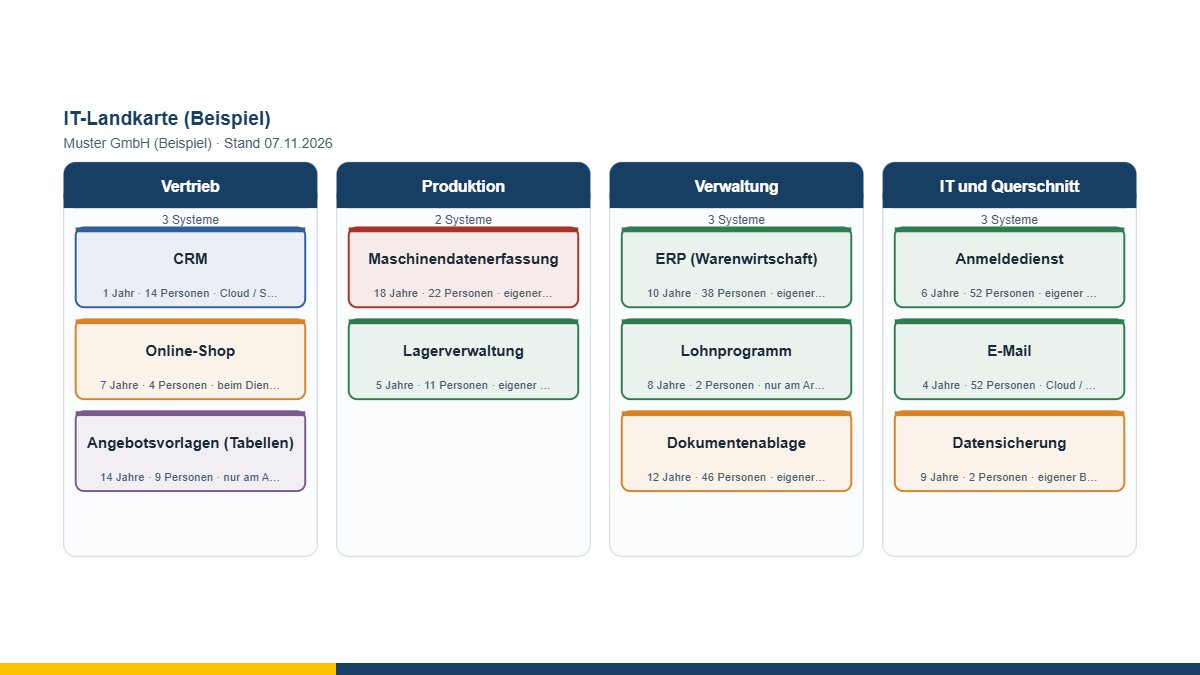
The IT map is the stocktaking for the first workshop: business areas as columns, systems as tiles, coloured by state or age – completeness before precision. The result goes into the 8EM Modeller as a table.
The architecture target picture fits on one page for the management: starting position, goal and three to five strategic thrusts with benefit, time frame, effort, those responsible and a first step. A strategic thrust can be passed to project management as a project mandate.
Outage simulation, service tree and availability
- Outage simulation: record business processes, applications, services, servers and external services with their dependencies, declare one element failed and see which processes come to a halt – with redundancy, multiple outages and a search for single points of failure.
- Service catalogue as a tree: business service, technical service and configuration item, each service with those responsible, service hours and criticality; adoption from the ITSM tool, the 8EM Modeller and the CMDB.
- Availability and SLA: convert percentages into downtime and calculate whole chains of series and parallel circuits. An aid for the conversation about service levels, not a promise.
Incident timeline, five whys and cause-and-effect diagram
- Incident timeline and review: the events of an incident on a time axis, and from them the detection, response and resolution times, below them learning points with measures – deliberately blame-free, with roles and systems instead of names.
- Five whys: keep asking “Why?” until the answer points at a process or a rule, at every step with evidence, a measure, those responsible and a deadline.
- Cause-and-effect diagram: collect causes as a fishbone and mark them as suspected, proven or ruled out; proven causes go into the solution database.
Data map
The data map shows what information there is, where it is held and who is responsible for it in business terms – with protection requirement, personal data, retention period and data flows. It supplies preparatory work for the record of processing activities, but does not replace it and is not legal advice.
SIPOC and pain points in the process
- SIPOC: clarify the boundaries of a process before anyone models it – supplier, input, process, output, customer; the process frame goes into the 8EM Modeller as a table.
- Pain points in the process: for each process step, bars for effort, trouble and error-proneness, set by those involved themselves. With “📤 Hand over to the 8EM Modeller” the steps go with mean values into level 6 of the model – without names and without individual votes.
Goal system, business model, stakeholders and impact network
- Goal system: vision, mission, strategic and operational goals with the relationships “supports”, “requires” and “conflicts with”; goal conflicts are listed separately. At the press of a button the goals go into levels 1 to 4 of the 8EM Modeller.
- Business Model Board: the business model as a flow of value from purpose to costs, revenues and impact; several pictures show today and tomorrow.
- Stakeholder map: place stakeholders by influence and interest, record attitude, concerns and measures.
- Impact Network: factors and their effects as a network, plus the influence matrix after Frederic Vester with active, critical, reactive and buffering variables.
Productivity tools
Mind map
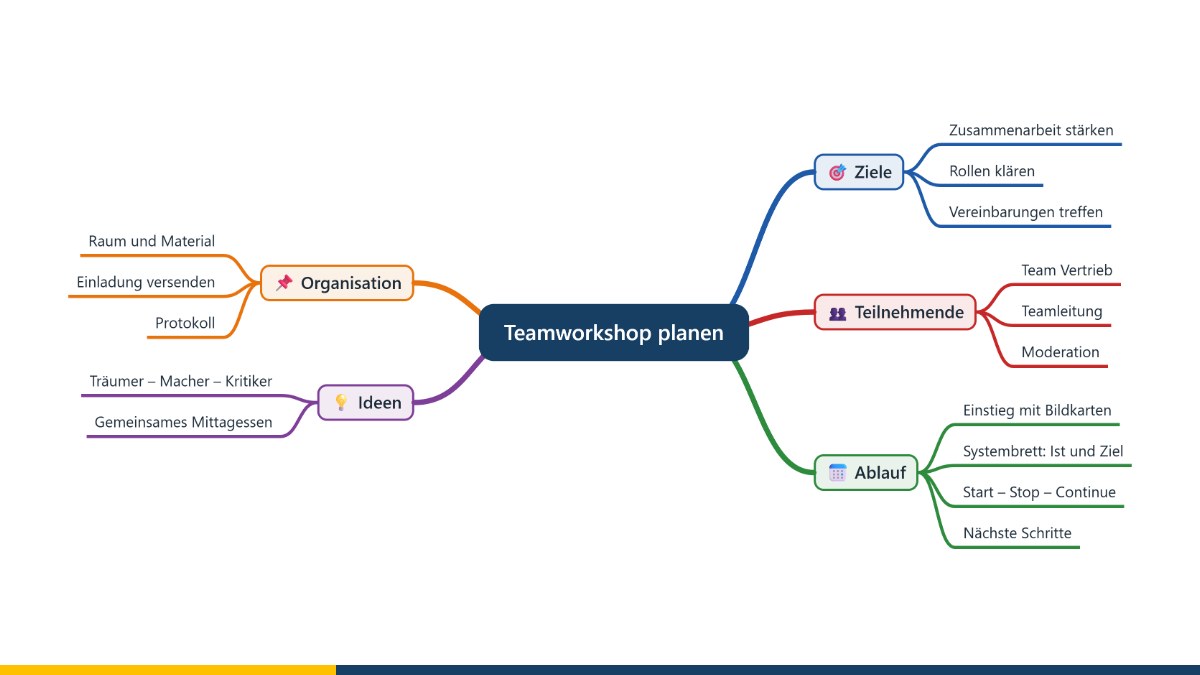
The mind map organises thoughts: branches with colours, symbols, notes with tables, images and drawings, dates and references. It imports Word, OpenDocument, PDF and MindManager and exports to Word, OpenDocument, PDF, PowerPoint, Impress and MindManager. The project folder is only available in Chrome and Edge. The mind map is released.
Kanban board
The Kanban board makes work visible: cards for epics, user stories, tasks and bugs move through freely designed steps – with dependencies, WIP limits, ready and done criteria, story points or euros and lanes by person or priority. Analyses show lead time, burn-up and the cumulative flow diagram. In the suite, your cards also appear under Tasks.
Warehouse management
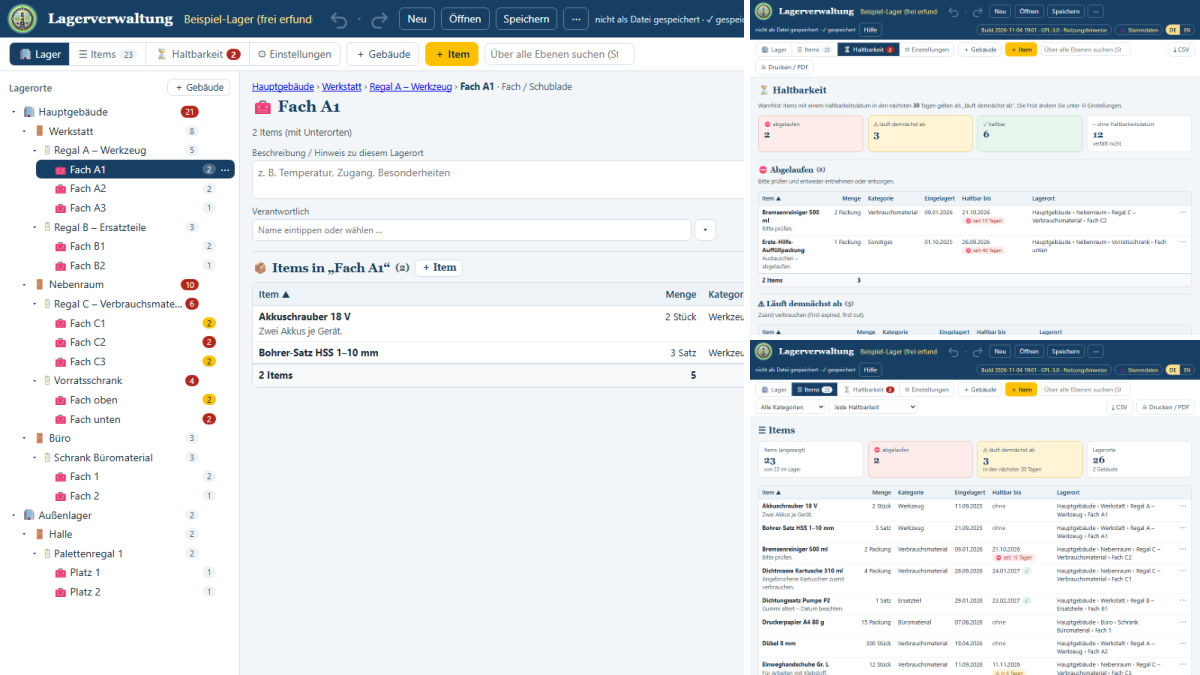
The warehouse management tool arranges stock the way it actually stands: buildings, rooms, shelves, compartments and drawers, holding the items with quantity, date stored and best-before date, supplier and batch. Plus a warning list for expiring stock, relocation by dragging, withdrawals and additions with history, and CSV output. As a multi-user version it runs via the suite’s server; there, the inventory on a phone without a network only works over HTTPS with a valid or installed certificate.
Analysis and conversation
The Analysis and conversation tool brings formats such as SWOT, TOWS, SOAR, GROW, Start–Stop–Continue, PMI, retrospective, Johari window, values and development square, Eisenhower matrix and energy balance onto one board – with dots for voting and a timebox. Without a team session, all entries stay on your device. In a team session, the board and cards are synchronised via the server of MY COACHING FOR YOU and deleted no later than 7 days after the last activity; in the suite, the team session runs via your own server.
Pre-mortem
In a pre-mortem you assume that the undertaking has failed a year from now and ask why. You collect reasons, anonymously if you wish, assess them by probability and impact and pass the result into the risk register of project management.
UML diagrams
The UML tool draws all 14 diagram types of UML 2.5.1, with a palette for each diagram type, a check against the rules of the specification, learning examples and output as PowerPoint, Visio, PDF or image. It adopts diagrams from the 8EM Modeller.
Text editor and calculator
- Text editor: for text, XML, HTML, JSON and VMware VMX files. Matching tags and brackets have the same colour, missing counterparts stand out; plus tidying up, checking, search and replace and the choice of encoding and line endings.
- Calculator: calculations as on paper, with operator precedence, percent (250 + 19 %), powers, roots, trigonometric functions, logarithms, history, memory and export as a table.
FreeHTML Editor
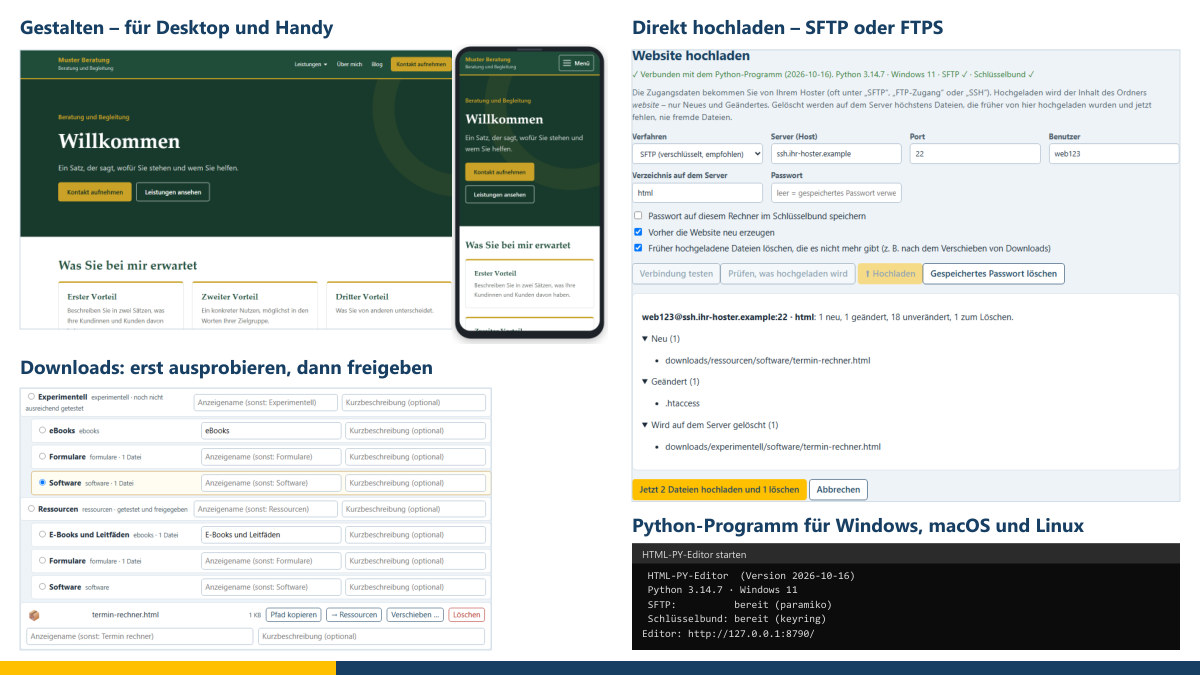
With the FreeHTML Editor you design a website of your own without programming knowledge: pages, menu, colours, fonts, logo, blog and downloads, directly in the browser. In Chrome and Edge it works with a project folder, in Safari and Firefox with a ZIP file. The HTML-PY editor, a version with Python, opens the same projects and additionally uploads the website via SFTP or FTPS.
People and coaching
These tools accompany coaching, constellations and reflection. I use the models in them – such as Theory U, the logical levels after Robert Dilts (Dilts pyramid) or the values model of Clare W. Graves, known as Spiral Dynamics – as reflection and conversation models, not as diagnostic instruments. Coaching is not psychotherapy. Many tools are available as a 2D board and as a walkable 3D scene; files can be carried over between the two versions.
Systemic board and 3D systemic board
With the systemic board you set up systems: figures, people, animals, objects, feelings and values, with viewing direction, relationships and several pictures. You take the perspective of a figure, compare pictures and output them as PDF, PowerPoint or image. The 3D systemic board shows the same constellation in space, from every angle and through the eyes of every figure; it is released.
Floor anchors and 3D floor anchors
The floor anchors tool places positions in the room: perceptual positions, drama triangle, tetralemma or timeline, with path, rounds and notes per position. In 3D, a walking figure steps into the positions.
Dreamer–Realist–Critic
The creativity strategy after Robert Dilts takes an idea through three stances one after another – Dreamer, Realist, Critic – with positions in the room, notes, path, rounds and time per position. Also as a walkable 3D scene.
Logical levels and U process
- Logical levels: the levels after Robert Dilts – environment, behaviour, capabilities, values, identity, belonging – as a pyramid for people or organisations, with resources, brakes and coherence; in 3D as a walkable staircase.
- U process board: accompany the U process of Theory U after C. Otto Scharmer, in seven or five steps, with inner voices, ideas and prototypes; in 3D as a path with ramps.
Social atom, inner team and genogram
- Social atom: a person’s relationship network after Jacob L. Moreno – people, groups and animals in closeness and distance around “Me”; in 3D with rings of closeness.
- Inner team: the inner voices after Friedemann Schulz von Thun with core message, concern and influence, leadership, alliances and oppositions; in 3D with speech bubbles and a podium.
- Genogram: family systems across generations with people, relationships, marriages, separations, children and life dates, output as PDF, PowerPoint, Impress, Visio or image.
Lifeline and wheel of life
- Lifeline: biographical work on a timeline with areas of life, events, feelings curve and backward planning from the goal; in 3D, a figure walks through time.
- Wheel of life: satisfaction in areas of life, plus role wheel, time pie and team clock after Tuckman, with several value series such as today and desired.
Resources, Ikigai, vision board and card work
- Resource garden and resource tree: sources of strength as a garden with 94 symbols or as a tree with roots, trunk and crown.
- Ikigai: four circles – what I love, what I am good at, what the world needs, what I am paid for – with intersections and an Ikigai sentence.
- Vision Board: vision board or mood board made of images, notes, texts, stickers and colour swatches, with templates.
- Card work: 54 motif cards as well as cards for questions, values, strengths, feelings, needs and sentence starters, your own card sets with pictures, drawing face down and layout templates.
Decision, Riemann-Thomann cross and Johari window
- Decision: tetralemma and decision balance with weighted arguments and gut feeling.
- Riemann-Thomann cross: closeness and distance, permanence and change – placing self-images and external images of people or teams.
- Johari window: open, blind spot, hidden and unknown from self-assessment and outside assessment, also with several outside assessments in a team.
Change, force field analysis and development square
- Change: force field analysis and the change curve in seven phases with what helps in each phase.
- Force field analysis: driving and restraining forces after Kurt Lewin, plus the “What if …” view.
- Values and development square: a value, its positive counter-value and the two exaggerations after Friedemann Schulz von Thun.
Escalation ladder and responsibility
- Escalation ladder: the nine stages after Friedrich Glasl, the parties to the conflict as figures on the stages, separately for each point of view, below them the form of help that still works there.
- Responsibility and delegation: for each task seven stages from “I decide alone” to “The team decides alone”, with the manager’s view and that of the team.
Questionnaires
The questionnaires run in the browser, without signing in and also on phones and tablets; they transmit no data. They have not yet been validated. The results are an orientation, not a label.
- Personal Values Profile and Values Profile Organisation: what weight seven value systems have today, if you wish also desired and under pressure – as a colour profile based on Spiral Dynamics®. Not scientifically validated.
- Personal U Profile and U Profile Organisation: fields of attention, steps of the U process and what holds things back – according to Theory U.
- Values–U Compass: values profile and U profile in one questionnaire, with conditions for change, warning signs and innovation climate; several results from the same organisation can be combined.
- EAM maturity check: self-assessment of architecture management in ten areas, today and desired, as a radar chart with the biggest levers. Not scientifically validated.
- IT survey form: collect IT systems in a structured way – profile, responsibility, usage, data, operation and emergency, interfaces, costs – to be filled in by the business units, with handover to the 8EM Modeller.
How the values model, Theory U and logical levels can be combined in a constellation is something I describe in the post on the Values Prism.
Games
All games run only in the browser; nothing is transmitted. Stack the Blocks, 3D muncher, Space defence and Solitaire can be played with keyboard, mouse or finger; Skat, Schafkopf and the environmental simulation game have finger-sized controls on the phone.
Board and card games
- 3D chess and 3D draughts: against the computer at five difficulty levels, on a freely rotatable 3D board, with move hints, move list and take-back.
- Skat: for three against the computer, with bidding, Grand, suit game and Null and correct scoring.
- Schafkopf: for four, with Sauspiel, Wenz and solo, Bavarian long cards and called-ace partner.
- Solitaire: Klondike with 1-card or 3-card draw; a double-click moves cards to the foundations automatically.
Games of skill
- Stack the Blocks: rotate and stack falling blocks; full rows clear.
- 3D muncher: collect dots in the maze and dodge the ghosts.
- Space defence: fend off a formation of attackers, wave after wave.
Simulations to think about
- Environmental simulation game: steer a country in an interconnected way over twelve rounds and watch feedback loops – on the method of networked thinking after Frederic Vester.
- The Company: steer a company for twelve years across capabilities, processes, organisation and IT systems – the weakest level limits all the others.
- Technical Debt: ten years of an IT landscape; the debt grows with compound interest.
- The Change Initiative: twelve months with communication, participation, pace and pressure.
- Operations: twelve months of IT operations between firefighting and prevention.
- The Team: twelve rounds of team development; the conflict potential grows unseen alongside.
- The Conversation: a learning game for conversational skills – not a therapy simulator and not a diagnosis.
Adventures and the Values Prism
- The Lighthouse: a graphical adventure in six scenes about orientation – two endings, no dead ends, no time pressure.
- The Server Room: a graphical adventure in four scenes about dependencies – first find out what fails, then switch off the old server.
- Seven Voices, Through Your Eyes and The Spiral: the Values Prism as a game. What is set up are parts, not types; no colour is better than another.
- The Valley: the path through the U of Theory U as a walkable valley. Like “Seven Voices”, it classifies nobody and measures no aptitude.
The MC4Y Taskbar
The MC4Y Taskbar is a program of its own (version 1.7.8). It floats above all windows, even without an open browser, and shows the tools of your suite – if you wish, also Word, Excel, web links and your own HTML tools. Without a suite, you use it with “Use without suite” for your own programs and files.
Connecting and signing in
The most convenient way is to download the taskbar in the suite under “Your account” › “Desktop taskbar and app”; the address is then already filled in. On first start you sign in once in the window “Connect to the MC4Y Productivity Suite” with your user name and password. The taskbar does not store the password; it receives a device key. Tools then open already signed in.
If the suite does not answer, the taskbar names the reason: certificate unknown, name cannot be resolved, connection refused, timeout (usually a firewall) or no answer from the suite (wrong address). You store a certificate of your own in the sign-in window under “Certificate” or in the settings with 🔒; certificate verification is never switched off. It only connects via http:// if you choose “🔓 Connect via http://”. You copy every message with 📋.
If your organisation works with a server and you also work with a suite on your computer, the taskbar chooses “Automatic – server, otherwise this computer”: if the server fails, it switches to the local suite and returns by itself. The 🌐 icon or “This PC” shows where the tools are currently coming from.
Using and customising
- The bar shows the categories; one click expands their tools, hovering shows the description, ☆ marks a favourite.
- 🔍 searches and shows the recently edited documents; the clock opens the calendar; ✕ quits the bar after confirmation.
- Using the handle ⠿ you drag the bar to any position, including onto another screen; a double-click puts it back in its default position. Among other things, the handle’s menu offers “Make horizontal”, “+ Add program or file …”, “+ New custom category …”, “⚙ Customise taskbar …”, “Settings …” and “ℹ Help and version …”. On the Mac, Control + click replaces the right-click.
- “⚙ Customise taskbar …” moves categories, hides them and resets them with “↺ Default order”. Custom categories apply to your account, so also in the browser and on other computers.
- 160 symbols of its own in eight groups, “🎨 Colour …” for each category and “Aa Font and colours …” with background, text colour, typeface and size from 8 to 18 points.
- “Always in front” is switched on at first; “Hide automatically” leaves only a gold strip at the edge.
- Tools open in an app window of their own without an address bar or as a tab in the default browser – in the same language as the bar.
Your own programs, files and web links
With “+ Add program or file …” you choose a program or file in the file window or from the list “Choose from the programs and apps on this computer …” (on Windows also the apps from the Store). If you wish, HTML files open in an app window of Edge or Chrome; if you wish, programs start with administrator rights, after the operating system asks. Programs and files on your computer stay only on that computer; the suite does not store them.
What is different on Windows, macOS and Linux?
| Topic | Windows 10/11 | macOS | Linux |
|---|---|---|---|
| Prerequisite | Python 3.8 or later; the installation script fetches it via winget if you wish | Python from python.org (the Python of macOS is not enough) | Python 3 with the package python3-tk |
| Dragging with the mouse | programs, files and shortcuts since 1.6.0 | from Finder since 1.7.8 (programs, files, folders, aliases) – not tested on a real Mac | not yet available; use the file window |
| Device key | protected with DPAPI | in the Keychain (“Always Allow”) | secret-tool, otherwise a file only you can read |
| Start at sign-in | set up by the installation script; switch on and off under Apps › Startup | tick “Start when signing in to the computer”, also under System Settings › Login Items | tick “Start when signing in to the computer” |
| Tried out | in my own use on Windows 11 | not yet confirmed on a real Mac; dropping only against a simulated Mac environment | automatically in Ubuntu (WSL), not on real computers |
Whether dropping with the mouse is switched on on your computer is shown by “ℹ Help and version …” – which also shows the version and the fingerprint of the program file. You update the taskbar by running the installation script again.
Frequently asked questions
Do I need the suite to use the tools?
No. Every tool runs on its own in the browser – on the website or as a downloaded file. You only need the suite if several people are to work together with the same files.
Are my entries transmitted?
Not without the suite: all entries stay on your device. The only exceptions are the company search in the Vertriebs-Navigator (to OpenStreetMap or Wikidata) and the team session in “Analysis and conversation”. With the suite, your data is on your organisation’s server.
Where do my files end up in Safari or Firefox?
In the browser’s downloads folder. If you want to choose the folder yourself each time, switch this on in Safari with “Ask for each download” and in Firefox with “Always ask you where to save files”.
Why is there no model folder and no receipt filing in Safari?
Because Safari and Firefox do not allow web pages to write to a folder on your computer. These features are only available in Chrome and Edge; in Safari and Firefox you work with single files.
Can I use the tools on my phone?
Yes. The board tools have their own controls for your finger; the questionnaires also run on phones and tablets. On the iPhone you will find saved files in the “Files” app. I tested this in simulated screen sizes, not on real devices.
Which tools are fully tested?
The mind map and the 3D systemic board are released. All others are beta and not fully tested; the questionnaires have not yet been validated.
Are the questionnaires and coaching tools diagnostic instruments?
No. I use Spiral Dynamics, Theory U and the Dilts pyramid as reflection and conversation models, not as diagnostic instruments. The results are an orientation, not a label.
Why does Windows not connect my network drive?
Windows only sends the password of a network drive over an encrypted connection with a trusted certificate. For this, the suite needs https:// with an installed certificate. Also sign in with an access password, not with your sign-in password.
I have forgotten my password for the suite – what now?
The person who looks after your suite creates a recovery code that is valid for 30 minutes. With it, you set a new password on the sign-in page via “Forgot password?”. For an account in the Windows domain, you change the password on a Windows computer in the domain.
Is this manual available as a PDF?
Yes. The user manual and the installation manual are available in German and English as PDFs under Resources in the eBooks section.
Important notes and trademark notices
The tools are provided free of charge and without warranty. They are aids for reflection, conversation and documentation and do not replace psychotherapeutic, medical, legal, tax or other professional advice. Please back up your files regularly.
Coaching services are psychological counselling activities outside the practice of medicine and are not psychotherapy within the meaning of Section 1(3) of the German Psychotherapists Act (PsychThG). Operational implementation is not part of my freelance services; the client or the client's partners implement the results of the consulting.
Trademark notices: Spiral Dynamics® is a registered trademark of National Values Center Consulting; the name here refers only to the underlying model. There is no connection with the trademark owners. Theory U® and Presencing® are registered trademarks of C. Otto Scharmer (US reg. 5883933 and 5135923); the names refer here only to the underlying model. There is no connection with the Presencing Institute. TOGAF®, ITIL® and COBIT® may be trademarks of their respective owners and are mentioned for descriptive purposes only. Tetris® is a registered trademark of Tetris Holding, LLC; PAC-MAN™ is a trademark of Bandai Namco, Space Invaders™ a trademark of Taito – the games are independent and only modelled on them; there is no connection. VMware is a trademark of VMware LLC (Broadcom Inc.) and is mentioned for descriptive purposes only. The environmental simulation game is inspired by Frederic Vester’s Ökolopoly/Ecopolicy (today Fredmund Malik, St. Gallen), independently implemented, and uses the names only descriptively.
I am happy to receive questions, bug reports and suggestions for improvement via the contact form.
Thinking further
You can find more on this topic under resources and downloads – or talk to me directly in a free initial consultation.
Comments
Comments are published immediately with your name. Only the name, title, comment text and time are stored – see the privacy policy.
Loading comments …