
This article was created with the AI assistant Claude and published by Peter Hoenig.
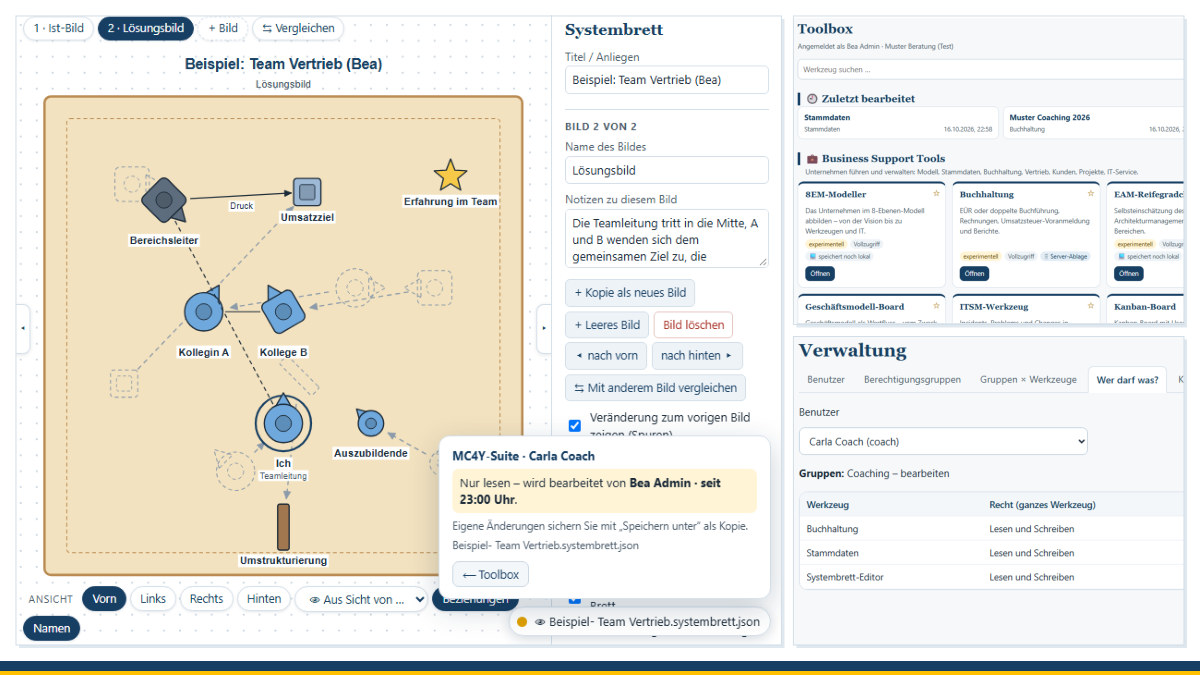
My tools – from the systemic board and the accounting tool to the master data editor – are deliberately individual files that run in the browser without a server and without a cloud. That will stay the same. But as soon as several people work with the same data, more is needed: shared storage, clear permissions and protection against two people changing the same document at the same time and overwriting each other's work. This is exactly what I am developing the MC4Y Productivity Suite for. All four planned stages have now been built and are running on a trial basis on my own computer and on a server in my network. You can download the suite as a trial version and install it yourself.
At a glance
- One login, one toolbox: all tools, arranged by category, with search, favourites and your recently edited documents – shown either as tiles or as a taskbar you can move freely, and if you like even as a separate program on your screen, without a browser being open at all.
- Always clear where and as whom: the portal, the tools and the taskbar show at all times which suite or server and which account you are working with; after a rights change the toolbox refreshes immediately.
- Permissions per tool: three levels – read, read and write, full access – assigned via permission groups; if required, only for individual areas, such as the clients of one particular coach.
- Shared storage: documents are kept centrally on the computer on which the suite runs – no longer scattered across individual devices.
- Locks while editing: whoever is editing a document holds it; everyone else can see who it is and can read the document in the meantime.
- Nothing gets lost: earlier versions, a recycle bin and a log that records who opened, saved or deleted what and when – without any content.
- Its own work modules: a document library with versions and an archive, a wiki, notes, tasks, a calendar, a CMDB for the IT components and a solution database – with a “My workspace” start page and a search across everything.
- For use in a team: installation on a Windows Server with IIS, on Linux with Apache or nginx, on a Mac or with a web hosting provider; encrypted connections, login with the company account from Active Directory and a daily backup that can be verified and restored.
- No third-party servers: no cloud, no tracking, no data passed to third parties.
- German or English: the portal, work modules, administration and all tools switch with one click on “DE” or “EN”; without a choice, the browser’s language applies.
- Free software: like all my tools, under the GPL – as an installation package for Windows, Linux, macOS and web hosting under Experimental – to try out.
The toolbox
After you log in, the toolbox shows only the tools you are allowed to use – arranged in the categories Business Support Tools, Productivity Tools, Personal and Coaching, and Other. At the top are the documents you edited most recently; one click opens them directly in the right tool. You mark frequently used tools as favourites with a star.
Each person decides for themselves how the tools appear. In the tile view, every tile shows a short description; if you move the mouse over it, the full text appears. If you prefer a tidier look, switch to the taskbar. At first it shows only the categories; a category's tools unfold only when you click it. In addition, there is a search across all tools, your own favourites – dragged into the order you want – and a clock that takes you to the calendar. The bar can lie horizontally or stand vertically, just as you prefer, and you can move it by its handle to any position on the screen; the suite remembers where it is. On a mobile phone it is always at the bottom.
The taskbar is also available as a small program of its own for Windows, macOS and Linux. It floats freely above all windows – even when no browser is open – and works in exactly the same way: first the categories, then the tools, plus search, favourites and clock. One click opens the tool in a slim window of its own without an address bar, already logged in. To make this possible, the program logs in once with a password the first time it is started and receives a device key, which it stores in the operating system's key store; it does not remember the password itself. Each person can see in their account which devices are connected and can disconnect them there at any time. Installation requires no administrator rights and applies only to your own user account; Python is required. If you download the program from your own suite, it already knows the suite's address – the applications then quite naturally come from your own server. The program can be connected to the server and to the suite on your own computer at the same time: by default it uses the server; if the server cannot be reached, for example when you are travelling, it switches to the suite on your own computer and returns automatically as soon as the server is available again. An icon in the bar shows where the tools are currently coming from and switches over with a click. So far I have tested the program under Windows 11 – I would welcome feedback from Mac and Linux users.
You can set up the bar to suit your own taste – all in one place under ⚙ Customise: drag categories to the position you want, hide those you rarely use, and collect in custom categories whatever belongs together for your work – tools of the suite as well as web links, for example to the intranet. This setup applies to your account, in the browser as well as in the program. In addition, the program can include programs and files on your computer, for example Word, Excel or an HTML tool such as my website editor. These entries deliberately remain only on the computer concerned: the suite does not store them and cannot determine what is started there. Incidentally, if you do not use the suite (yet), you can also use the bar just for such programs.
If you would rather not have an additional program, you can install the suite in Edge or Chrome as an app with a single click: it then gets its own window and an icon that, like any program, can be placed in the Start menu or the Dock.
The suite’s interface is available in German and English. At the top right, “DE” and “EN” switch the portal, work modules, administration and the open tools together; if you have not made a choice, the suite follows your browser’s language. Only the browser remembers your choice – nothing is sent to the server. The interface is translated, not your content: documents, names and notes stay as they were entered. The exceptions are the wiki and the solution database – there every entry has a German and an English version (more on this below). The manual for administrators is included in both languages, and the taskbar program, the graphical installer and the installation scripts also speak German or English – like the operating system or as you choose.
Who may do what?
I do not assign permissions to individuals one by one, but via permission groups. A group has a level and applies to the tools assigned to it – entirely or only for certain areas. For example, the “Coaching” group gets read and write access to the systemic board, the accounting tool and the master data, while the tax adviser may only read the accounts. Anyone who belongs to several groups receives the highest permission for each tool. The “Who may do what?” view shows at a glance, for each person, which permission they have and where it comes from.
One separation was important to me: whoever administers the suite creates users and groups, but does not automatically see all content as a result. Administrators, too, are bound by what their groups allow.
Working on documents together
When someone opens a document for editing, he or she holds its lock. Meanwhile, everyone else can only open it for reading – with a clear notice of who is editing it and since when. Any changes of your own can be saved as a copy at any time. Once the editing is finished, the others see “It is now free” within half a minute at the latest, and with one click they continue editing the latest version.
Locking works per document, not per tool: while one colleague is editing a systemic board, another can work on any other systemic board. If a window stays open without anyone working in it, the suite asks after an hour and otherwise releases the lock. Anyone with full access, or who administers the suite, can take over an editing session in urgent cases; the other person learns of this immediately and can save their changes as a copy.
Every time something is saved, the suite keeps the previous version. Deleted documents end up in the recycle bin and can be restored.
All tools on board
I started with one tool for each type of storage:
- Systemic board – one document is one file. Opening and saving go through the suite's storage instead of your own computer.
- Accounting tool – a set of accounts is a whole folder with data, receipts, invoices, reports and backups. It is locked as a whole.
- Master data – a shared data set on which several people may work at the same time. If two people change different entries at the same time, the suite merges both, entry by entry.
By now, all 50 tools work with the shared storage – from the genogram to the 3D tools, the questionnaires and the UML editor, right up to the 8EM Modeller, whose model, together with all its storage folders, is kept on the server as a whole. I did not rewrite the tools themselves for this: outside the suite they work exactly as before.
On top of this comes what only becomes possible with a shared server:
- Handovers between people: an invoice from the project management tool, a won customer from the Vertriebs-Navigator (my tool for sales prospecting) or an incoming invoice from the Kunden-Navigator (my tool for customer care) appears for the colleague in the accounting tool – even on a different computer.
- Master data for everyone: whoever creates a person in a tool creates them in the shared data set; changes made by others arrive within half a minute at the latest.
- Team sessions of the analysis editor run via the suite instead of via my website.
- Exchange between related tools: the 2D version of a 3D systemic board goes straight into the storage of the systemic board, and the project analysis tool reads the projects from the storage of the project management tool.
I tested this with a test run across all tools (save, open from storage, save again, read only) and with two people working on the same documents at the same time – without any loss of data.
Document library, wiki, notes, tasks and calendar
In addition to the tools, the suite comes with its own modules for everyday collaboration. The same permission groups apply here too – down to individual libraries, wiki areas or shared calendars.
- Document library: libraries with folders and custom columns, drag-and-drop upload, preview of PDFs, images and texts. Every change becomes a new version – as a draft (0.1) or approved (1.0), with a comment and comparison. If you are going to edit a document for some time, you check it out. Classification from “public” to “secret”, keywords, categories and saved views help keep things in order; the search also finds text in Word, Excel, PowerPoint and OpenDocument files. Completed material moves to the archive: read-only, with a retention period and checksums.
- Wiki: pages in Markdown, arranged as a tree and linked with
[[double brackets]]. Each page shows what links to it; clicking a link to a page that does not exist yet creates that page. If you rename a page, the wiki updates the links. Versions with comparison, a lock while editing and export as PDF or Markdown are included. Every page exists in German and English: a new page is created in both languages with the same text. As long as the other version is still an unchanged copy, it changes along with it. Once you have translated it – by hand or with a translation program of your choice – it is never overwritten again; if the original changes afterwards, it shows “⚑ Check translation”, and a comparison shows both versions side by side, together with what has changed. - Notes: jotted down quickly, with checklists to tick off, colours, keywords and links to documents, wiki pages or tasks. Notes are private until you share them with individual people or groups. Every tool offers a quick entry for this – if you like, with a link to the document that is currently open.
- Tasks: with assignees, priority, due date, subtasks, comments and attachments from the document library; plus the views “Today”, “This week” and “Overdue”. Cards from the Kanban board and work packages from the project management tool that are assigned to you appear in the same list. If you complete something there, the card moves on in the board – according to the rules that apply in the board, and only if nobody is editing it at that moment.
- Calendar: a personal calendar for each person and shared calendars for the team, with day, week, month and list views, recurring appointments, invitations that can be accepted, and reminders. Others see private appointments only as “busy”. Deadlines from tasks, Kanban and projects can be shown as well. Appointments come in and go out via
.icsfile; with a subscription link, even the calendar app on your mobile phone shows the appointments. - CMDB: a configuration management database for servers, workstations, printers, network and everything else – with addresses, attributes, installed software and a history of every change. Existing lists from Excel, Active Directory, the DHCP server or Wireshark can be imported with a preview; nothing that was entered by hand is overwritten in the process. Each device shows where it came from and when it was created and last changed. The ITSM tool assigns incidents, service requests, problems and changes to devices from the CMDB, records missing ones there straight away if you wish, and analyses which systems are causing trouble. If you wish, agents and a crawler report devices and software themselves. More on this in the posts The CMDB of the MC4Y Suite and ITSM tool.
- Solution database: proven solutions, structured like a wiki – with categories, links, versions and attachments, shared by everyone. When a ticket is being recorded, the ITSM tool suggests suitable solutions and, with a tick, adopts resolved tickets as drafts; instructions from Word, PDF, PowerPoint or LibreOffice can be imported, and solutions can be output in these formats again. If you only want to look things up, you open it as a separate module. As in the wiki, every solution has a German and an English version with the same rules; the search finds solutions in both languages.
The “My workspace” start page brings together what is due today: appointments, due tasks, pinned notes and the most recently edited documents. A search finds documents, wiki pages, notes, tasks, appointments and tool documents in one step. Anyone who is assigned a task, invited to an appointment or receives a shared note sees this from the bell in the suite's header.
The suite's interface is now checked by more than 500 automated tests – from the permissions for each library and simultaneous changes in the wiki to the rules of the Kanban board when changes are written back.
Installation – on your own computer or on the network
The suite needs only PHP – no database server, no Node, no cloud. For Windows 10 and 11 and for the Mac from macOS 12 there is an installation script for a single-user installation; on Windows the easiest way is the graphical installer, which on request also fetches missing prerequisites such as PHP. The script creates a dedicated system account under which the suite runs, asks where the content should be stored, sets up this data folder so that only administrators and this account can access it, and starts the suite when the computer boots – accessible only on this computer itself. You then create the first administrator in the browser. A dry run shows beforehand what the script would do, without changing anything.
For a team there are installation scripts for a Windows Server with IIS, for Linux with Apache or nginx, and for the Mac; with a web hosting provider, you upload the files and set up the storage in the browser. The scripts for Linux and for running a server on the Mac have not yet been tested on real systems; I would welcome feedback here. On a Windows Server, the suite can even be installed from your own workstation: a Windows login window asks for the server's administrator account, and the script takes care of everything else – web server, PHP, certificate, data folder, firewall, daily backup – and at the end stores a log and a quick guide. The password goes only to Windows; the script does not store it. On the network, the suite can only be reached via an encrypted connection.
I describe step by step how this works in detail – from the prerequisites and the first login to updating – in the post Installing the MC4Y Suite.
Operation: company account, backup, checks
- Login with the company account: where there is an Active Directory, employees log in with their usual Windows account – if you wish, even without entering a password, because the computer already knows them. For this, the suite queries the domain controller and does not need a service account of its own. The permissions someone receives are derived from their groups in the directory, which are synchronised at every login. Anyone who leaves the company and is disabled in the directory can no longer get into the suite either.
- Forgot your password? There is deliberately no reset by e-mail. If someone can no longer sign in, the person who looks after the server creates a recovery code there; with it, the account owner sets a new password themselves via “Forgot password?”. The code appears only on the server, is valid for 30 minutes and single use.
- Daily backup: once a day, the suite packs all content into a ZIP file – with a consistent snapshot of the database, even while someone is working, and with checksums for every file. One click checks whether a backup is intact. Restoring is done via a script; the previous state is not deleted in the process but set aside. Backups are best kept on a different drive – the system check reminds you of this.
- Storage locations and system check: the administration area shows where everything is stored and how much space is still free, and checks at a glance whether PHP, backup and security settings are correct. An operations manual also contains a checklist for a security audit.
Data protection and security
The suite sets exactly one cookie: the session key after login. It stores passwords only as a hash, login attempts are limited, and every request checks session, permission and lock. The log records who did what and when, but never what is in the documents. Appointment reminders are shown only by your own browser while the suite is open; a calendar's subscription link works without logging in, shows private appointments only as “busy” and can be switched off at any time. Whatever the tools store temporarily in the browser – drafts, remembered files, backups – the suite clears away when you log out; on a computer that only you use, you can opt out of this. If a different person logs in on the same browser, everything is always cleared, so that nobody sees other people's drafts. Handovers between tools can only be read by the tools involved. When logging in via Active Directory, the domain controller checks the password; the suite only remembers the login name, name, e-mail address and the account's identifier. The backups contain all content and must therefore be protected as carefully as the data itself.
Whoever operates the suite is responsible for the data in it. Coaching content in particular can be especially sensitive; for this there are areas that only the people responsible can see. Before using the suite with customer data, I recommend encrypting the hard disk and having an independent security audit carried out.
What comes next
The suite is still being trialled. I use it myself and, like my other tools, provide it as free software: you will find the installation package mc4y-suite.zip and the desktop taskbar under Experimental – to try out. If you wish, you can install it on your own hardware at your own responsibility; I do not offer to operate it for others. I would welcome feedback, especially on Linux and macOS. Still on my list is access to the storage and calendar from other programs, for example as a network drive or as a calendar subscription with write access.
Would you like to know whether a shared tool environment is right for your team? Get in touch.
Thinking further
You can find more on this topic under resources and downloads – or talk to me directly in a free initial consultation.
Comments
Comments are published immediately with your name. Only the name, title, comment text and time are stored – see the privacy policy.
Loading comments …