
This article was created with the AI assistant Claude and published by Peter Hoenig.
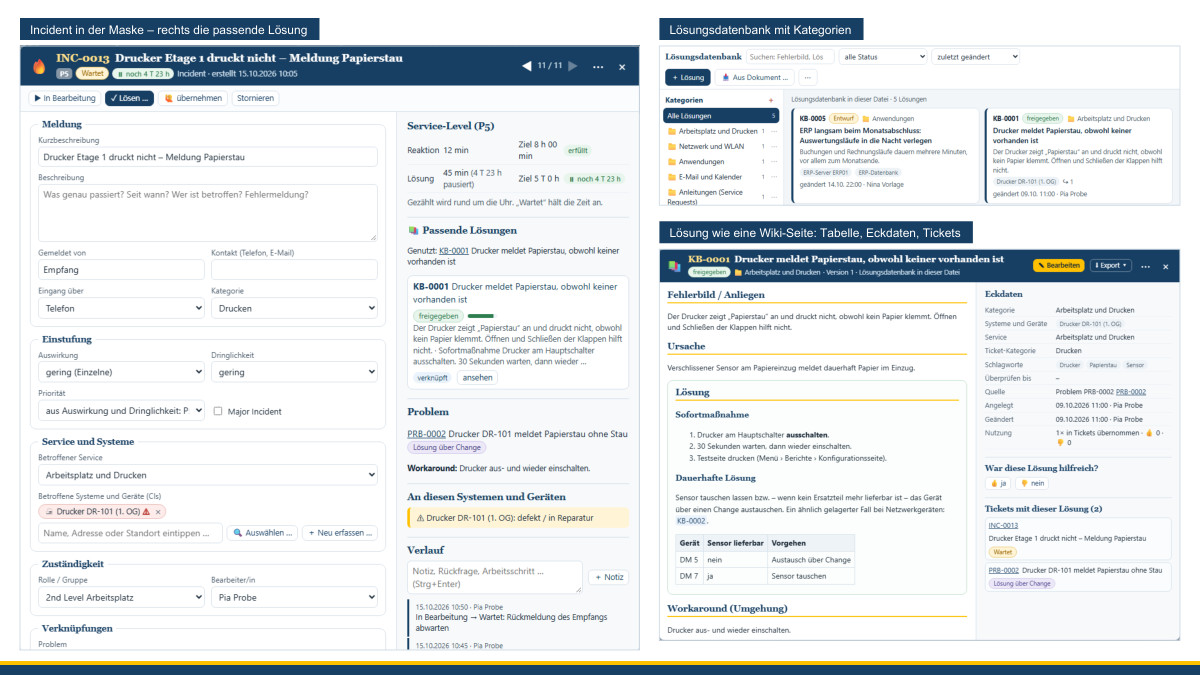
A printer reports a paper jam although there isn't one. A new colleague needs access to the project folder. After a change to the firewall, nobody can reach the file storage any more. In small IT teams, reports like these often arrive by word of mouth, e-mail and telephone – and get lost just as quickly. And whoever found the solution last time has to search for it all over again the next time. The ITSM tool, one of the MC4Y tools, brings order to this: it records incidents, requests, their causes and the changes made to fix them, in line with ITIL® 4 but deliberately lean. In addition, there is a solution database, structured like a wiki, that suggests matching solutions while you record a ticket, and the integration with the CMDB of the MC4Y Productivity Suite.
At a glance
- Four types of ticket: resolving disruptions (Incidents), handling wishes and requests (Service Requests), finding and eliminating causes (Problems) and implementing changes in a controlled way (Changes) – with responsibilities, priorities, service levels and history.
- One form per ticket: A click on a row or card opens all the details, clearly arranged in groups; on the right are the service levels, matching solutions, links and history.
- Solution database like a wiki: proven solutions with categories, cross-references, versions and attachments. When you record a ticket, the tool suggests matching solutions; with a tick, you turn resolved tickets into a draft.
- Word, PDF, PowerPoint, images and LibreOffice: you import existing instructions as solutions, and you can export any solution again as a Word, PowerPoint or LibreOffice file, as PDF or as HTML.
- German and English: every solution has a German and an English version. New solutions are created in both languages; a translated version is never overwritten but marked “⚑ Check translation” when the original changes.
- Several systems per ticket – including newly recorded ones: As you type, the tool suggests matching devices; if one is missing, you record it directly in the ticket and, if you wish, in the CMDB straight away. The CMDB shows where each device came from and when it was created and last changed.
- Reports: fault-prone systems, Service Requests, Changes and their consequences, how the solutions are used and where solutions are missing.
- Also without the Suite: The tool also runs on its own in the browser; solutions and their attachments are then stored in your file.
Incidents, Service Requests, Problems and Changes
You record an incident with just a few details: what is disrupted, which service is affected, how great the impact is and how urgent it is. This gives the priority from P1 to P5, and the service levels use colours to show whether there is still enough time left to resolve it. A ticket can be assigned to a role or group – such as the service desk or 2nd level – and to a person.
Not every report is an incident. A second monitor, a new program, access for a new colleague or the question of how to set up an out-of-office message are Service Requests. They have their own numbers (SR-0001 …), a type of request, a requested date and, if required, an approval. In the list, you filter by incidents, requests or both; a dedicated report shows the intake, completion and service levels of the requests.
If similar incidents keep recurring, a Problem groups them together. There you record the cause, the analysis method and the workaround. Once the cause is known, the Problem becomes a known error: new matching incidents are offered the workaround straight away. You implement the permanent solution through a Change – request it, assess the risk, approve it, schedule it, implement it and review it afterwards. I have described how this approach can be introduced step by step in a small business in Introducing ITSM in practice.
One form instead of a long sidebar
A click on a ticket opens its form: on the left, the fields in logical groups – Report, Classification, Service and systems, Responsibility, Links, Solution – and on the right, the service levels, matching solutions, linked tickets, affected devices and the history. At the top are the next steps, such as “In progress” or “Resolve …”. With Alt and the arrow keys you move to the previous or next ticket in the list; Esc closes the form. Every change can be undone with the large arrows at the top.
The solution database – structured like a wiki
Each solution is a page of its own: symptom, cause, solution with steps, tables and images, plus a workaround for emergencies, keywords, affected systems and the service. You organise solutions in categories, which you can nest like folders. References such as [[KB-0002]] lead to other solutions, and every solution shows the tickets in which it has been used. A status indicates whether a solution is still a draft, approved or outdated; a “review by” date reminds you to keep it up to date.
Editing here means writing in an editor with headings, lists, tables, links and images. Every saved change becomes a new version – you can see who changed what and when, compare two versions and restore an earlier one. Deleted solutions go to the recycle bin first.
Every solution exists in German and English – at the top you choose which version you see and edit. A new solution is created in both languages with the same text; as long as the other version is an unchanged copy, it changes along with it. Once you translate it – by hand or with a translation program of your choice, with the saved version in the other language shown alongside for copying – it becomes a version of its own. If the original changes afterwards, the translation stays untouched and is given the mark “⚑ Check translation”. A comparison shows both versions side by side and what has changed since the last comparison; “Is up to date” removes the mark, or you take over the other version again as a copy. The search and the suggestions in the ticket find solutions in both languages, there are versions per language, and when exporting you choose one language or both in one document.
Matching solutions as soon as you record a ticket
As soon as a ticket's short description and description have been entered, the tool searches the solution database. It looks for shared terms – giving more weight to the title and keywords than to anything elsewhere in the text – and for the same system and the same service. General words such as “receive” or “open” do not count, and a term that merely repeats the service counts for little – so a suspicious e-mail does not bring up the instructions for the out-of-office message. It recognises different forms of a word in German and English alike – “Drucker” and “Druckers” just as “drops”, “dropped” and “dropping”; “Wi-Fi” counts as one term. Matching solutions appear on the right of the form with an excerpt; with one click, you transfer the workaround and solution text into the empty fields of the ticket, and the two are then linked. You can see how often a solution has been used and rated as helpful in the solution itself and in the report.
Conversely, the database grows out of the work: under “Solution”, every resolved ticket has a tick box “Add as a permanent solution suggestion to the solution database”. This creates a draft with the symptom, cause, workaround, solution and systems, which refers back to the ticket. You revise it – for example by removing names and details that only applied to this case – and approve it.
Documents in and out
Many solutions already exist – as a Word guide, as a manufacturer's PDF, as PowerPoint slides from a training session or as a screenshot. With “From document …” you import Word (.docx), PDF, PowerPoint (.pptx), LibreOffice Writer (.odt) and Impress (.odp) files as well as images (JPG, PNG, GIF) and text files – each file as a solution of its own or into the solution you are currently editing. Headings, lists, tables and images are retained as far as the format can be read; the original file is attached to the solution, and its text is included in the search.
Getting documents out works just as well: you can export any solution as a Word, LibreOffice, PowerPoint or Impress file, as a PDF for printing, as HTML or as a ZIP with all its attachments; all solutions in the list currently shown can be combined into a single Word document or PDF in one go. This lets you pass on instructions without the recipients having to know the tool.
Assigning and recording systems and devices
The ticket contains the field “Affected systems and devices”. If you type part of the name, IP address, location or model, matching suggestions appear; you choose with the arrow keys and Enter, without reaching for the mouse. With “Choose …” you can select several devices at once. If a device is missing, “Create new …” opens a small form with name, category, status, manufacturer, model, location, address, operating system and service. The device is assigned to the ticket immediately.
When the tool runs within the MC4Y Productivity Suite, it searches the CMDB live. Anyone who has write access there finds the tick box “also create in the suite’s CMDB” already ticked when recording: the device then appears in the CMDB with the origin “recorded in the ITSM tool” and the ticket number. In general, the CMDB shows for every device where it came from – created by hand, recorded in the ITSM tool, imported from Excel, a CSV list, Active Directory, a DHCP list or a Wireshark export, transferred from the 8EM Modeller or reported by an agent or the crawler – and when it was created and last changed. The master details are maintained in the CMDB; the tool compares them when it is opened and warns you if a device has been retired, is defective or has been deleted.
Useful in everyday work: under “On these systems and devices”, every ticket shows what else is going on with the same devices – other open incidents, known errors and, above all, Changes that have just been implemented.
Reports
The analyses are organised into reports, each with key figures, charts and tables, for a period of your choice, for printing as a PDF and as CSV for Excel:
- Overview: intake and resolutions per week, service levels per priority, current workload and Change success rate.
- Service Requests: intake and completion per week, by type of request, service levels, open urgent requests.
- Solution database: which solutions are used, in which categories solutions are missing, which resolved tickets are candidates for new solutions and which solutions are due for review.
- Fault-prone systems and devices, analyses by category, manufacturer and location, Changes and their consequences, known errors per system, the file for a device and the data quality of the assignments.
All reports describe the tickets, solutions and devices recorded – they are not intended for assessing individual people.
With and without the Suite
On its own in the browser, the tool stores everything in a *.itsm.json file on your computer – including the solution database with its attachments. In the MC4Y Productivity Suite, by contrast, the solution database is shared by everyone on your own server and can also be reached there as a separate “Solution database” module – including by colleagues who only look things up and do not work on tickets. Who may read, write or permanently delete what is determined by the Suite's permission groups.
Data and notes
Record personal details such as the person reporting and their contact details only as far as is necessary for handling the ticket; device data can also relate to people, for example when a laptop is assigned to a person. Before you approve a solution taken from a ticket, remove names and details that only applied to this case – including on screenshots. Documents are imported and exported by your browser; nothing is sent to external services in the process. All sample data in the tool and in the image are invented.
The tool is guided by ITIL® 4 but is not a certified product. It is a trial version: Open the ITSM tool. I describe the CMDB in the post on the MC4Y Productivity Suite.
Would you like to structure your IT operations without introducing a large tool straight away? Get in touch – you can find more on this under IT-supported organisational consulting.
Trademark notice: ITIL® is a registered trademark of the PeopleCert group. Microsoft Word and PowerPoint are trademarks of Microsoft Corporation; LibreOffice is a trademark of The Document Foundation. The names are used for descriptive purposes only; there is no connection with the trademark owners.
Thinking further
You can find more on this topic under resources and downloads – or talk to me directly in a free initial consultation.
Comments
Comments are published immediately with your name. Only the name, title, comment text and time are stored – see the privacy policy.
Loading comments …