
This article was created with the AI assistant Claude and published by Peter Hoenig.
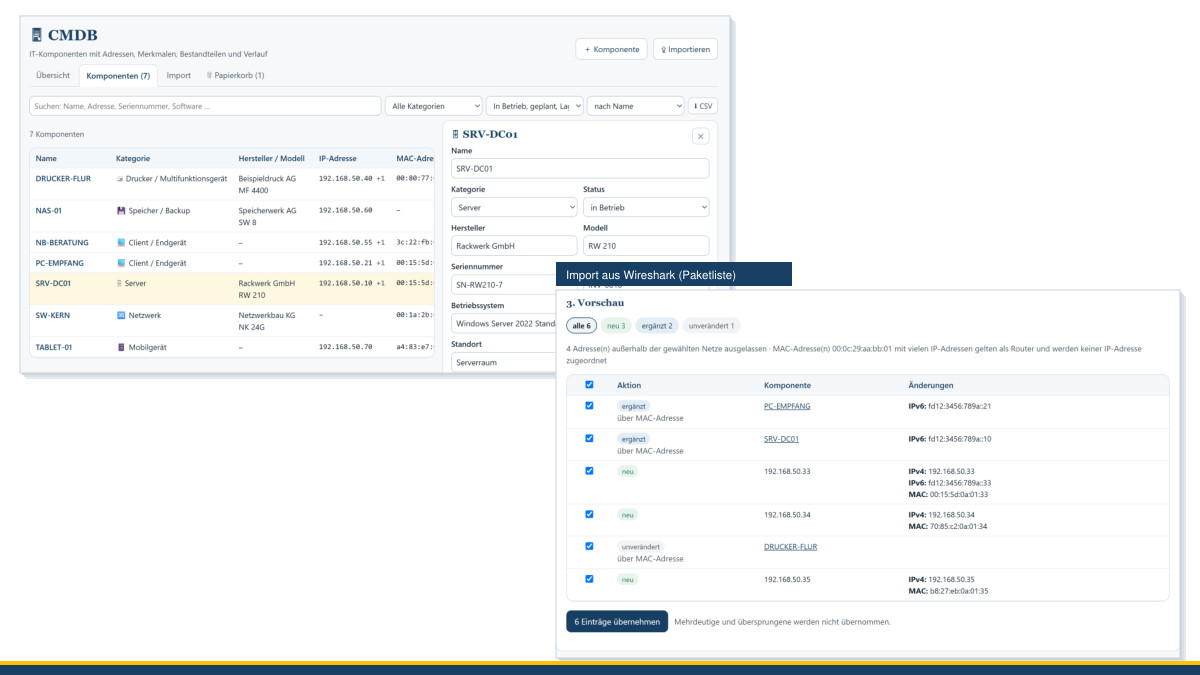
When a printer goes on strike, a laptop can no longer get onto the network or a server is due to be replaced, the work almost always begins with the same questions: Which device is it exactly? Where is it, who is it assigned to, what address does it have, what runs on it? In small and medium-sized enterprises, the answers are often scattered – in an Excel list, in Active Directory, in the DHCP server and in the head of the person who “does the IT”. That is why I have given the MC4Y Productivity Suite its own CMDB, a configuration management database for the IT components. Incidents, problems and changes from the ITSM tool can be linked to these entries, and the 8EM Modeller transfers its IT systems, platforms and components to the CMDB.
At a glance
- One place for all devices: servers, virtual machines, workstations, laptops, mobile devices, printers, network and security components, storage, telephony, peripherals and building services, plus applications, platforms, technical architecture plans and software building blocks – in sixteen categories that match the component types in the 8EM Modeller.
- Everything about a device: manufacturer, model, serial number, inventory number, operating system, location, the people responsible, IP and MAC addresses, freely definable attributes and parts such as services, shares, drives and network cards. Installed software is kept by the CMDB as its own components – with the list of devices it is installed on.
- Nothing gets lost: Every change is recorded in the history – who, when, before, after. Anything deleted goes to the recycle bin.
- Origin and date: Every device shows where it came from – created by hand, recorded in the ITSM tool, imported from a list, transferred from the 8EM Modeller or reported by an agent or the crawler – and when it was created and last changed.
- Physical, software or abstract: Every component carries a classification; entries recorded by hand are pre-set from the category, while devices reported by agents or the crawler are automatically set to “physical” (software to “software”). The overview and the list can be filtered by it too.
- Software as its own CI: Record software, services and applications with a version (each major version as its own component), a deployment (local, on a server, internal or external cloud) and licence and maintenance costs – so you can see which software runs where and what it costs.
- Installed on which devices: for each piece of software the CMDB shows which devices it is installed on (and how many of them still report in); a weekly run clears out the entries of silent devices.
- Groups and suites: related components – such as the programs of an office suite – can be combined into a group; the suite is itself a component that carries the licence and the costs. Newly found software is assigned to the matching suite automatically via a maintainable rule list, while an assignment made by hand is left untouched.
- Recording without retyping: Existing lists can be imported – from Excel or CSV, from Active Directory, from the DHCP server and from Wireshark.
- Recording automatically (optional): small agents for Windows, Linux, Raspberry Pi, macOS, Android and Home Assistant report a device's inventory; a crawler scans the configured networks on request. Inventory only, set up visibly, encrypted and sent only to your suite.
- Look first, then apply: Before every import, a preview shows exactly which devices would be newly created and which would only be supplemented.
- Connected to the ITSM tool: Incidents, Problems and Changes name the devices affected; for each device, the CMDB shows the associated tickets.
- Connected to the 8EM Modeller: IT systems, architecture plans, platforms and components from the enterprise model are transferred to the CMDB when you save – with the phase of their lifecycle as their status.
- Your data stays with you: The CMDB lives in the Suite on your own computer or server – without any cloud.
What makes up a component
Every component has a name, a category and a status: in operation, planned, in stock, defective or retired – and, for applications and platforms, also the phases of the lifecycle: idea created, project (implementation), being introduced, decommissioning planned and decommissioned. Decommissioned and retired entries only appear in the list if you ask for them. In addition, every component carries a classification – physical, software or abstract: for components recorded by hand the CMDB pre-sets it from the category (a server as physical, say, “Software / service” as software, “Application / IT system” as abstract) and it can be changed freely; devices reported by an agent or the crawler are automatically set to “physical” (software to “software”). On top of this come the usual basic details such as manufacturer, model and serial number, the location and who is responsible for the device. Anything else that matters – processor, memory, warranty until, supplier, maintenance contract – you enter as an attribute; the CMDB suggests the common ones, and you can add your own at any time.
For software, services and applications there are dedicated fields: the version – you keep each major version as its own component –, the deployment (local, on a server, in the internal or an external cloud) as well as licence and maintenance costs. This keeps track of which software runs where, in which version and at what cost; the list can also be filtered by deployment.
Software, installations and groups
The CMDB keeps installed software not as a part of a device but as its own component per product and major version – “Microsoft Word 2021” and “Microsoft Word 2024” are two entries. For each piece of software you can see which devices it is installed on: “installed on n devices”, plus how many of them still report in. If a device stops reporting for a longer time, a weekly run removes its installation entry again (the period – 30 days by default – is configurable; the software component itself is kept). That way the number shows where a piece of software really still runs, without being distorted by machines that signed off long ago. Devices maintained by hand never age out.
Related components can be combined into a group or suite – the programs of an office suite, for instance. The group is itself a component with its own form; on it you keep what applies to the whole suite, such as the licence. You can assign from both sides by hand – choose a group on the software, or add members on the group. For software found automatically there is a maintainable rule list “product → group” (pre-set, e.g. Word, Excel, PowerPoint and Outlook → “Microsoft Office”): newly reported software is then placed in the matching suite on its own. An assignment made by hand always takes precedence and is never overwritten by the automation.
A component can have several addresses: IPv4, IPv6, MAC address and DNS name. Each address belongs to exactly one device. If an IP address is given to a different device – after a replacement, for instance – it moves across with it, and the CMDB records the change. Under Parts you will find services, shares, drives with their partitions, connected devices and network cards; installed software, by contrast, is kept by the CMDB as its own components (see above).
Every device also carries its origin: created by hand, recorded in the ITSM tool (with the ticket number), imported from Excel, a CSV or text list, Active Directory, a DHCP list or Wireshark, transferred from the 8EM Modeller, reported by an agent on the device, found by the crawler during a network scan or taken over from a CMDB export – for imports, including the file name. In addition, the device shows the date it was created, the date it was last changed and, if a list has confirmed it, when it was last seen. This lets you spot, for example, entries that came from an old list once and have never turned up again since.
You can search the list – including addresses, attributes and software – filter it by category, status, origin and classification, and sort it by name, category, manufacturer, location, last change, creation date or “last seen”. For an overview, the CMDB start page shows the number of devices per category, per origin and per classification, the most recently changed entries and the latest imports.
Importing existing lists
Hardly any company starts from scratch. That is why the CMDB reads in what already exists – by dragging the file into the window or by pasting a copied table. It recognises the format by itself and assigns the columns; anything it does not know, you assign with a few clicks or take over as an attribute.
- Excel or CSV: any list with a header row, such as your existing inventory. Columns such as name, IP address, MAC address, manufacturer, model, serial number or location are recognised; the CMDB provides a template for you to fill in.
- Active Directory: the computer accounts with operating system and last logon, for example with
Get-ADComputer -Filter * -Properties DNSHostName,OperatingSystem,OperatingSystemVersion,IPv4Address,Description,LastLogonDate | Export-Csv rechner.csv -NoTypeInformation -Encoding UTF8. Disabled accounts can be left out when importing. - DHCP: the leased addresses with MAC address and device name, on the DHCP server for example with
Get-DhcpServerv4Scope | Get-DhcpServerv4Lease | Export-Csv dhcp.csv -NoTypeInformation -Encoding UTF8. - Wireshark: lists from a capture of your own – the endpoints, the packet list as CSV or the resolved addresses. If the packet list also contains the MAC addresses, the CMDB matches IP and MAC addresses to each other. A MAC address behind which there are many IP addresses is recognised as a router and not assigned to any device.
- CMDB export: from another MC4Y Suite, for example when moving to a server.
So that addresses from the internet do not show up as devices of your own, the CMDB by default only takes addresses from the private network ranges; you can also enter your company's networks yourself, for IPv4 as well as IPv6.
There is one limit that matters to me: the import does not scan any network itself – it only reads files that you give it. From Wireshark the CMDB takes only addresses and names, never the contents of the capture. Network captures can, however, contain personal data – so only capture in your own network and in line with your company's internal rules. If you would rather record the inventory continuously and automatically than from files, you set up the agents or the crawler from the next section deliberately.
Recording automatically: agents and crawler
Importing lists is one way; the easiest way, though, is for the inventory to maintain itself. For that there are two small helpers that the IT staff set up in their own network: an agent that runs on a device and reports its inventory, and a crawler that scans the networks you enter for reachable devices. Both are inventory only, send only to your own suite and keep the data in your network – and they exist for Windows, Linux, Raspberry Pi, macOS, Android and Home Assistant.
How this is set up, what the agents report and what to bear in mind about virus scanners and firewalls is covered in detail in its own post, Agents and crawler: IT into the CMDB automatically.
Matching with a preview
When importing, the CMDB looks for the matching device for each row – first by serial number, then by MAC address, then by name (without the domain) and finally by IP address. Placeholders that some manufacturers enter instead of a real serial number do not count. If a row matches several devices, the CMDB would rather not take it over than assign it wrongly, and shows it as “ambiguous”.
Before anything is saved, you see every row in the preview: new, supplemented, unchanged or ambiguous – for supplemented rows with the details before and after. You can deselect individual rows. The preview actually runs the import and then rolls it back; what it shows is therefore exactly what happens when you apply it.
Nothing you have entered or corrected by hand is overwritten by a later import. This means you can re-import the list from Active Directory every week without losing your own details; the CMDB only adds what is new and records when it last saw a device.
Permissions, backup and data protection
As with all parts of the Suite, the permission groups determine who may read and edit the CMDB and import lists: read, read and write, or full access – only with full access can anything be deleted permanently.
The CMDB has its own database in the Suite's data folder: if the Suite runs on your computer, the database is stored there; if it runs on a server, it is on the server. The Suite's daily backup includes it and checks it too; it is also backed up separately before every update. Export as CSV or JSON is possible at any time.
Device data, too, can relate to people – for example when a laptop is assigned to a person, bears their name or Active Directory shows the last logon. Whoever runs the Suite is responsible for this data; the Suite's privacy information describes what the CMDB stores. It transmits nothing to the outside world.
What comes next
The CMDB is the foundation. The first connection is already in place: in the ITSM tool, any number of components from the CMDB can be assigned to every Incident, Service Request, Problem and Change – live in the Suite; if a device is missing, you record it in the ticket and, if you wish, create it in the CMDB straight away. Dedicated reports show which device keeps causing trouble, which changes led to follow-up incidents and where known errors apply; conversely, the CMDB lists the associated tickets for each device. You can read more about this in the post on the ITSM tool. The second connection is the 8EM Modeller, which I use to map companies in the 8-Level Model: when you save a model in the Suite, it transfers IT systems, technical architecture plans, platforms and IT components to the CMDB – with a status taken from the lifecycle and attributes such as standardisation, place of operation and ICT object. Whatever is already maintained in the CMDB stays as it is; the Modeller does not recreate anything that has been moved to the recycle bin. Conversely, entries from the CMDB can be assigned in the model, for example in the grid of an architecture plan. In this way, the device list becomes part of the overall picture: Which processes depend on which server, and what does replacing it mean for the people who work with it?
The CMDB is part of the MC4Y Productivity Suite, which you can download as a trial version from Experimental – software and tools to try out and install yourself. I have tested it with invented lists; I would be glad to receive feedback from real networks.
Would you like to bring order to your IT landscape or align it with your processes? Get in touch – you can find more on this under IT-supported organisational consulting.
Trademark notice: Microsoft, Active Directory and Excel are trademarks of Microsoft Corporation; Wireshark is a registered trademark of the Wireshark Foundation. The names are used for descriptive purposes only; there is no connection with the trademark owners.
Thinking further
You can find more on this topic under resources and downloads – or talk to me directly in a free initial consultation.
Comments
Comments are published immediately with your name. Only the name, title, comment text and time are stored – see the privacy policy.
Loading comments …