
This article was created with the AI assistant Claude and published by Peter Hoenig.
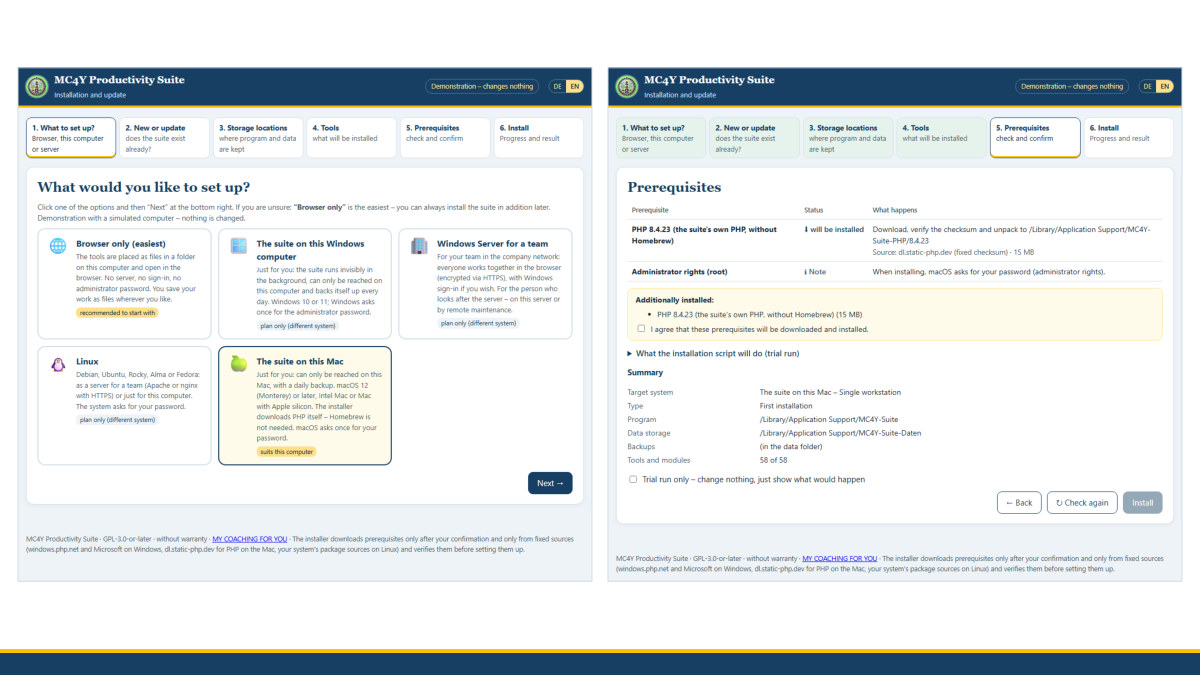
The MC4Y Productivity Suite brings my tools together under a single login – with shared storage, permissions, a document library, wiki, notes, tasks and calendar. It does not run in a cloud but on your own computer or server. This post is a step-by-step guide for people without IT knowledge: every step has a number and exactly one action, and whatever you click or type is shown in “quotation marks” – exactly as it appears on the screen.
At a glance
- Four routes: browser only (the easiest), the suite on your Windows PC, the suite on your Mac, or the suite for a team on a server.
- Browser only: unpack mc4y-werkzeuge.zip, double-click
index.html– done. No password, no installation, and it works on older Macs too. - The whole suite: mc4y-suite.zip contains the program, the tools, the manual, a graphical installer and the scripts for Windows, macOS and Linux.
- Windows: double-click “Installer-starten”, and the installer guides you through six steps in the browser and downloads PHP itself.
- Mac: from macOS 12, Intel Mac or Apple silicon – two commands in Terminal. You do not need Homebrew or Xcode: the installation downloads its own PHP and checks it against a fixed checksum. Afterwards you find “MC4Y Suite” and, if you wish, the desktop taskbar “MC4Y Taskbar” in Launchpad like any other program.
- Devices for the CMDB: the same graphical installer can also set up an agent or crawler that reports devices to your suite's CMDB – tile “Report this device to the CMDB (agent/crawler)”.
- Your data stays with you: everything is stored in a folder you choose yourself; the suite backs itself up daily.
- German and English: the installer and the suite switch language with “DE | EN” at the top right; the installation scripts write in the language of your computer – or always in English with
--lang en. - Trial version: free software (GPL), without warranty; the installation on the Mac has been tested on a real device, the Linux scripts not yet.
Which route is right for me?
Work through the questions in order. The first time you answer “yes”, you have found your route.
- Do you want to use the tools on your own, or try them out first and save your work as files? Then take Route A – browser only. It is the easiest and works on any Windows computer, any Mac and on Linux.
- Do you want the whole suite for yourself – with sign-in, shared storage, calendar, wiki, tasks and a daily backup? Then take Route B on a Windows computer or Route C on a Mac.
- Is a whole team going to work with it? Then the person who looks after your servers sets up Route D – a Windows Server, Linux or a web hosting package.
You can start small: Route A now, the suite later. You can open your files from Route A again in the suite.
What you need
- A current browser: Edge, Chrome, Firefox or Safari.
- For Route B: Windows 10 or 11. Here is how to check: press the Windows key and R at the same time, type “winver” and press Enter. The window “About Windows” shows the version. You also need the password of an administrator account – if you set up the computer yourself, that is usually your own.
- For Route C: macOS 12 (Monterey) or later. Here is how to check: click the Apple icon at the top left and then “About This Mac”. It shows, for example, “Version 14.7” – the first number must be 12 or higher. If it says 10.15 or 11, your Mac may be updatable free of charge (Apple menu › “System Preferences” › “Software Update”); a 2019 MacBook Pro, for example, can get macOS 15. Otherwise take Route A. You also need the password you use to sign in to your Mac.
- Internet during the installation (Routes B and C download PHP, the programming language the suite runs on – 15 to 35 MB).
- Time: Route A about 5 minutes, Route B or C about 15 minutes.
Route A – browser only
- Download mc4y-werkzeuge.zip.
- Unpack the file. Windows: in File Explorer, right-click the file, then “Extract All…” and “Extract”. Mac: in Finder, double-click it in the “Downloads” folder – Safari often unpacks the file by itself.
- Tip: put the unpacked folder “MC4Y-Werkzeuge-…” in its permanent place straight away, for example in “Documents”. You should not move it later.
- Double-click “index.html” in the folder. In the browser you now see the page “MC4Y tools” with all the tools.
- Bookmark the page: on Windows press Ctrl + D and click “Done”; on the Mac press cmd + D and click “Add”.
- Click a tool. With “Save” you store your work as a file, and with “Open” you get it back.
Nothing is transmitted. On Windows, Route A also works with the graphical installer from Route B – there you then choose “Browser only (easiest)”.
Route B – the suite on your Windows computer
- Unpack the package: download mc4y-suite.zip and open File Explorer (Windows key + E) › “Downloads”.
- Right-click “mc4y-suite” and then click “Properties”. If the bottom says “This file came from another computer …”, tick “Unblock”. Then click “OK”. This stops Windows from warning you at every step later.
- Right-click “mc4y-suite” › “Extract All…” › “Extract”.
- In the new window, open the folder “MC4Y-Suite-…”.
- Start the installer: double-click “Installer-starten”. If a blue window “Windows protected your PC” appears, click “More info” and “Run anyway”.
- You now see a black window – leave it open – and shortly afterwards, in the browser, the page “What would you like to set up?”.
- In the installer: click “The suite on this Windows computer” and, at the bottom right, “Next →”.
- “New or update”: you see “No existing installation found – a new installation will be made.” Click “Next →”.
- “Storage locations”: next to “All locations on”, click a drive – if you only have one, click “Drive C”. Green hints such as “OK – will be created” appear under the fields. If you have a second drive, it is best to put the backups there. Then click “Next →”.
- “Tools”: leave everything selected and click “Next →”.
- “Prerequisites”: the installer shows what it additionally downloads (for example PHP from windows.php.net) and where from. Tick “I agree …” and click “Install”.
- Windows asks “Do you want to allow this app to make changes to your device?” – click “Yes”.
- Wait until “Installation complete.” appears (2 to 10 minutes). Click “Open suite” and create your first account (see below). Finally, click “Close installer”.
From now on, the suite starts by itself every time the computer boots and can be reached only on this computer, at http://127.0.0.1:8090/.
Route C – the suite on your Mac
On the Mac, the safest way is Terminal. That is a window you type commands into. Don't worry: you enter only two commands, which you can copy from here – select the text and press cmd + C, paste it into Terminal with cmd + V and run it with the Return key. If Terminal asks for a password, no characters appear as you type, not even asterisks. That is intended.
- Unpack the package: download mc4y-suite.zip.
- Open Finder › “Downloads” and double-click “mc4y-suite.zip”, unless Safari has already unpacked the file. You now see the folder “MC4Y-Suite-…”. Leave the Finder window open.
- Open Terminal: press cmd + Space, type “Terminal” and press Return.
- Change into the package folder: in Terminal, type
cdand a space – do not press Return yet. - Drag the folder “MC4Y-Suite-…” from Finder into the Terminal window. After
cdyou now see the path to the folder, such as/Users/anna/Downloads/MC4Y-Suite-0.4.15. - Press Return. If macOS asks whether “Terminal” may access files in the “Downloads” folder, click “OK”.
- Install: copy this command into Terminal and press Return:
bash install/macos/installieren.command --lang en– the ending--lang enmakes the script write in English, exactly as quoted here, even on a Mac set to German. - At “Password:”, type your Mac password and press Return.
- At “Data folder [/Library/Application Support/MC4Y-Suite-Daten]:”, at “Set up the desktop taskbar for … as well? [Y/n]”, at “Start the taskbar automatically when you sign in to your Mac? [Y/n]” and at “Run the installation now? (Return = yes) [Y/n]”, simply press Return each time – this accepts the suggestions. The desktop taskbar needs Python; if it is missing, the suite still runs and the script explains how to add the taskbar later.
- Wait 1 to 5 minutes. The installation first downloads PHP, checks it and then sets up the suite.
- When you see “Done. Address: http://127.0.0.1:8090/”, the browser opens with “Set up the suite”. Create your first account (see below).
- Then start the taskbar: cmd + Space, type “MC4Y”, choose “MC4Y Taskbar” and press Return. Sign it in with the same user name and password. Back in Terminal, it says “Press Return to close …”: press Return and quit Terminal with cmd + Q – the suite and the taskbar keep running.
Please do not start the package's files by double-clicking them in Finder: macOS blocks this for files from the internet. Via Terminal with bash … this problem does not arise. The graphical installer is available on a Mac too, but there it is rather something for experts: it additionally needs Python from python.org and is also started in Terminal, with bash installer-starten.command.
Creating the first account
- On the page “Set up the suite”, enter the name of your company or practice next to “Organisation” (it can stay empty), then “Your name” and a “User name” without spaces, for example “anna.muster”.
- Enter a “Password” of at least 10 characters and repeat it under “Repeat password”. Keep it safe.
- Leave the box “Also add me to the group ‘All tools – full access’ …” ticked and click “Set up and sign in”.
You now see the start page of the suite with your tools and modules.
How to check that it worked
- Open
http://127.0.0.1:8090/in the browser: you see the sign-in page of the suite. - Restart the computer and open the address once more: the sign-in page is back – so the suite starts by itself.
- In the suite, click “Administration” and “System check”: most rows are green.
- Under “Administration” › “Backup”, click “Back up now” and then, in the new row, “Check”.
How to start the suite and the taskbar later
- Windows: Start menu › “MC4Y Productivity Suite” (opens the suite; on a computer set to German “MC4Y-Produktivitaetssuite”) or “MC4Y Taskleiste”; the suite is also on the desktop as a shortcut.
- Mac: the installation creates two programs with an icon – “MC4Y Suite” opens the suite in the browser, “MC4Y Taskbar” starts the desktop taskbar. You find both in Launchpad (on macOS 26 it is called “Apps”), via Spotlight (cmd + Space, type “MC4Y”, Return) and in the Finder under “Applications”. Drag the icons into the Dock – then one click is enough.
- Start at sign-in: if you wish, the taskbar starts by itself as soon as you sign in. On a Mac and on Linux you switch this on or off in the taskbar: click 🔍, at the bottom “Settings” › tick “Start when signing in to the computer” › “Save” (on a Mac from macOS 13 also under System Settings › General › Login Items). On Windows the installation sets up the start; you switch it on or off in Windows Settings › Apps › Startup – the taskbar shows the status under “Settings” and opens that page with “Windows Settings › Startup apps …”. The suite itself always runs in the background anyway.
- Do not confuse: in the suite you can also switch on a taskbar in the browser under “Your account” › “Appearance”. It belongs to the browser window and disappears when you close it. The desktop taskbar is a program of its own and stays open until you quit it with ✕.
If something goes wrong
- Windows: the black window closes straight away. The package has not been unpacked – choose “Extract All…” and start “Installer-starten” from the unpacked folder.
- Windows: “Next →” stays grey. A red hint appears under a field. Read it and choose a different folder or another drive.
- “Port … is in use”: another program is using the number 8090. Enter 8091, for example, in the “Port” field; the address is then
http://127.0.0.1:8091/. - Mac: “No such file or directory”. You are not in the package folder – repeat steps 4 to 6 of Route C.
- Mac: “Sorry, try again.” The password was wrong – type it again, slowly.
- Mac: “… is not in the sudoers file”. Your account is not an administrator. Sign in with an administrator account – or take Route A.
- Mac: “Operation not permitted”. Terminal is not allowed to read the folder: Apple menu › “System Settings” › “Privacy & Security” › “Files and Folders” › under “Terminal”, switch on the “Downloads Folder”.
- Mac: “This Mac has macOS 11 … The suite needs macOS 12 (Monterey) or newer”. Update macOS – or take Route A.
- Mac: “Python (3.8 or newer, with tkinter) is missing on this Mac for the taskbar.” The suite runs anyway. Install Python from python.org (“macOS 64-bit universal2 installer”) and then add the taskbar with
bash install/macos/installieren.command --aktualisieren --taskleiste --lang en. - The taskbar disappears when you close the browser. That is the taskbar in the browser – start the program “MC4Y Taskbar”.
- “User name or password incorrect”: every suite has its own accounts – the account on your own PC does not apply on the server. After five failed attempts, an account is temporarily locked.
- Forgotten password: click “Forgot password?” on the sign-in page. Whoever looks after the suite creates the recovery code you need on the computer or server – on Windows by double-clicking “Kennwort-zuruecksetzen” in the
install\windowsfolder of the package or the installation, on a Mac withbash "/Library/Application Support/MC4Y-Suite/install/macos/kennwort-zuruecksetzen.command". The code is valid for 30 minutes and can be used only once. There is deliberately no reset by e-mail.
For the team: a server on the company network
The person who looks after your servers sets this up.
- Windows Server with IIS: most easily with the graphical installer as in Route B, choosing “Windows Server for a team” – on the server itself or by remote maintenance from your own workstation. It sets up IIS, PHP with its own configuration, HTTPS with a certificate of its own, a firewall rule, Windows sign-in and the daily backup, and at the end it shows a setup code for the first account. Afterwards, register the certificate as trusted on the workstations (most easily via Group Policy), open
https://servername/and create the first account; under “Administration” › “Sign-in (domain)”, switch on sign-in with the company account if you wish. Without the installer:install\windows\installieren-server.batorauf-server-installieren.ps1. - Linux with Apache or nginx:
sudo bash install/linux/installieren.sh --probelauf --lang enshows what would happen (“Probelauf” means dry run; the option names are German, and with--lang enthe messages appear in English); without--probelaufit installs. The script installs missing PHP packages after asking you, creates a system account, protects the data folder, redirects to HTTPS and sets up the daily backup. It has not yet been tested on real systems – please try it on a test system first. - Web host: select PHP 8.2 or later, upload the folders
app,publicandinstallas well as.htaccessandkonfig.beispiel.phpvia SFTP (including the hidden files), open the address and, under “Set up storage”, choose a data folder outside the web directory. Set up a cron job for the daily backup. For personal data, you need a data processing agreement with the provider.
Everything is explained in detail in the operations manual (public/handbuch-en.html in the package) and in INSTALL.txt.
Updating and removing
- Updating: download the new package and go the same route once more. The installer detects the existing installation, backs up the database beforehand and leaves content, accounts and settings in place. On the Mac, the command is
bash install/macos/installieren.command --aktualisieren --lang en(“aktualisieren” means update); it also offers the desktop taskbar and creates the program “MC4Y Suite” if it is still missing. With Route A, copy the new files over the old ones. - Removing: Route A – move the folder to the Recycle Bin (Windows) or the Bin (Mac). Windows – in the package, under
install\windows, double-click “deinstallieren”. Mac – in Terminal,bash "/Library/Application Support/MC4Y-Suite/install/macos/deinstallieren.command" --lang en; the desktop taskbar is removed withbash ~/"Library/Application Support/MC4Y/Taskleiste/deinstallieren-macos.command" --lang en. Your content stays in the data folder until you delete it yourself.
If you want to reach the tools without an open browser, also install the desktop taskbar.
Your responsibility
The suite is free software and is provided without warranty. If you install it, you operate it yourself and are responsible for the data in it; it transmits nothing to me. Coaching content in particular calls for special protection. Before using it with client data, I recommend an encrypted hard drive, backups in a second location and an independent security review; the manual contains a checklist for this. I do not offer to run the suite for others.
I welcome feedback – especially on macOS and Linux. Would you like to introduce the suite in your team and clarify processes, roles and responsibilities at the same time? Get in touch.
Sources and notes
- PHP for Windows: windows.php.net. On the Mac, the suite uses a pre-built PHP file from static-php-cli; the checksum is fixed in the installation script. PHP is licensed under the PHP License and is not included in the package – the installer downloads it on request. On Windows, it installs Python for the desktop taskbar via winget, Microsoft's package manager; on the Mac, Python comes from python.org.
- Licence of the suite: GNU General Public License, version 3 or later.
- Windows, Windows Server, IIS and Active Directory are trademarks of Microsoft Corporation, macOS and Safari are trademarks of Apple Inc., Linux is a registered trademark of Linus Torvalds; Apache is a trademark of the Apache Software Foundation, nginx a trademark of F5, Inc., Python a trademark of the Python Software Foundation. The names are used for descriptive purposes only.
Thinking further
You can find more on this topic under resources and downloads – or talk to me directly in a free initial consultation.
Comments
Comments are published immediately with your name. Only the name, title, comment text and time are stored – see the privacy policy.
Loading comments …