
This article was created with the AI assistant Claude and published by Peter Hoenig.
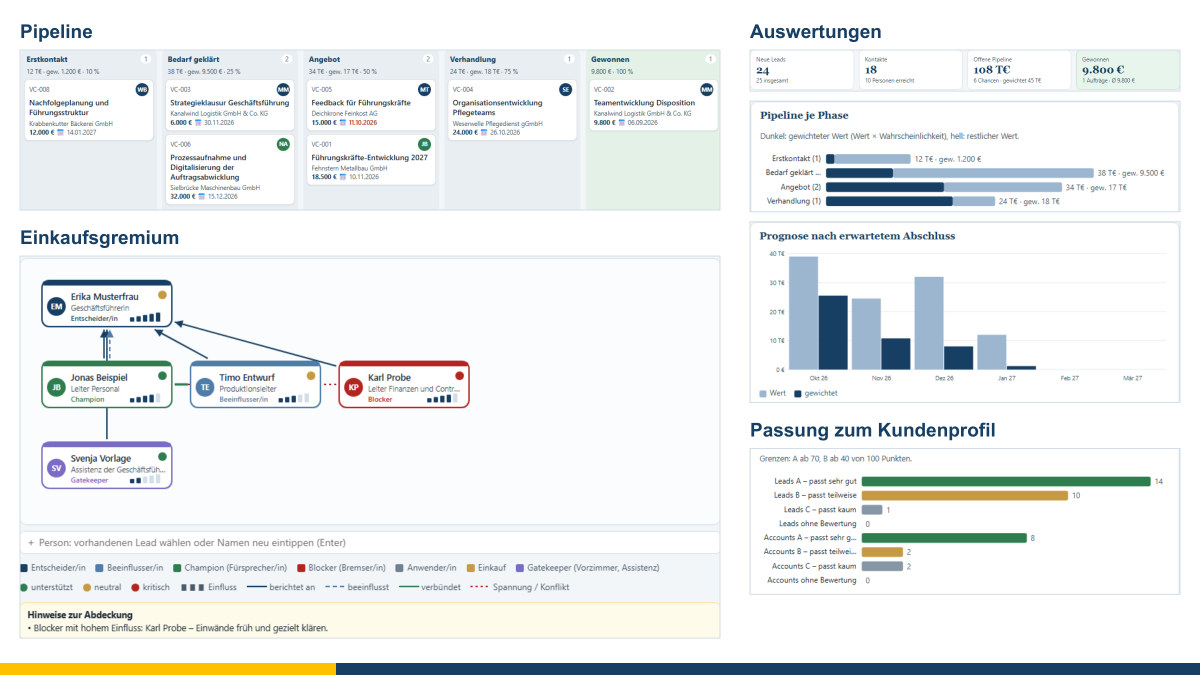
In small and medium-sized enterprises, prospecting often looks like this: a few names in an Excel list, notes in the calendar, contacts on LinkedIn and a great deal kept in your head. That works well as long as there are only a few. But if you want to win new customers in a targeted way, you need a better overview: Which companies actually suit me? Who has a say in decisions there? When did I last get in touch, and what is the next step? That is what the Vertriebs-Navigator, my tool for sales prospecting, is for. The idea comes from well-known sales tools such as LinkedIn's Sales Navigator. My tool, however, deliberately works differently: it does not access LinkedIn and does not harvest any data from the web. It organises what you yourself know and record – and pays attention to data protection and competition law as it does so.
At a glance
- Ideal customer profile and fit: Describe your ideal customers by industry, size, region, function and hierarchy level. Every contact and every company receives a fit rating from A to C.
- Leads and accounts: contact persons and companies with search, filters, lists and saved searches that show new hits.
- Research: search links from your ideal customer profile, a company search in open data (OpenStreetMap, Wikidata) and the option of pasting in your own research results, for example from an AI assistant.
- Buying committee: a map for each company of who decides, who influences, who supports and who is putting on the brakes.
- Staying on the ball: signals such as job changes, follow-up reminders, contact history and messages from your own templates.
- Pipeline and reports: opportunities in phases with probabilities, forecast, win rate and reasons for losses – as PDF and CSV.
- Data protection built in: the source of every contact, deadlines for providing information under Art. 14 GDPR, notes on permitted contact channels, retention periods, a do-not-contact list and access requests.
- Handing over: Customers you have won go to my tools for customer care, accounting and project management at the click of a button; additional business comes back as an opportunity. People and companies can be linked to the master data.
- Free and local: free of charge, free software, the data remain on your device.
Profile first, then the list
Good prospecting does not begin with as many addresses as possible, but with the question of whom you can really help. In the ideal customer profile you specify which industries, company sizes and regions suit you and which functions and hierarchy levels your typical contact persons have. Each criterion is given a weight. From this, the tool calculates a fit for every contact: A fits very well, B partly, C hardly at all. If a detail is missing, you can tell from the question mark – and know where further research is worthwhile.
In addition, you describe your typical contact persons as personas: what drives them, what goals and concerns they have, which objections you are familiar with and how you would like to approach them. From a contact's position – “Managing Director”, “Head of HR” – the tool recognises function and hierarchy level and suggests the matching persona.
Where the contacts come from
The Vertriebs-Navigator does not read out any profiles, automates nothing on LinkedIn and needs no browser extension. Contacts come from sources that belong to you or that you yourself use deliberately:
- Your own entries: from a business card, a conversation or a trade fair – fastest with “⚡ Quick entry”.
- Your LinkedIn data export: In LinkedIn, under “Settings & Privacy › Data privacy › Get a copy of your data”, request your Connections. Import the file
Connections.csvfrom the ZIP file via “📥 Import”. It contains names, profile address, company, position and the date you connected, and the email address only if the person has made it available. This also works with a regular account. - Lists from Excel, CSV and address books: The preview recognises the columns, shows what is new and what already exists, and lets you choose with tick boxes. You bring in Outlook contacts as CSV or vCard.
- Master data: people and organisations from my master data tool.
Anyone who is already in the tool is recognised – by profile address, email address or name and company – and only supplemented. If you import your LinkedIn export again later, the tool shows changes as signals: someone has changed company, has been promoted or has newly connected with you. Moments like these are often the best reason to get in touch.
You add hits from a LinkedIn search one at a time: open the profile, copy the address from the address bar and enter it in the quick entry together with name, position and company. That way the contact remains linked to your export later on, once you connect.
Finding new companies
The “🔎 Research” section helps in three ways:
- Search links: Your ideal customer profile produces ready-made searches – on the web, on the map, in business directories and in LinkedIn search. They open in a separate tab of your browser; the tool reads nothing there.
- Company search in open data: For an area and selected categories, the tool searches for companies in OpenStreetMap or in Wikidata – companies only, no people. You tick what fits and take it over with details of its source and a licence notice. For this, your search area and the categories are sent to these open services. The company search works here on the website just as it does with the tool downloaded to your computer.
- Your own research: Research with the tool of your choice, for example Microsoft 365 Copilot, Claude or a search engine. For this, the tool produces a ready-made research brief from your ideal customer profile – if you wish, with the list of companies you already know, so that nothing comes up twice. It explicitly asks for public sources with citations and asks the assistant not to make anything up. You copy the answer table back and paste it in with “📋 Paste table”; the preview recognises the columns and takes over the source and rationale for each entry.
Spot-check research results – AI assistants make mistakes too. And please: do not collect addresses from website legal notices (Impressum) for mass emails.
Who has a say?
In companies, one person rarely decides alone. The buying committee map (also known as the buying centre) shows for each company who has which role – decision-maker, influencer, champion, blocker, user, purchasing, gatekeeper – how the people feel about your offer and how much influence they have. With the mouse you connect people: who reports to whom, who influences whom, who are allies and where there are tensions. Notes draw attention to gaps, for example if nobody is yet known as the decision-maker or if you have only a single contact person. The map can be printed and saved as an image.
Staying on the ball without being pushy
For each contact, the contact history records when you were in touch and how: call, email, meeting, letter, proposal. Follow-ups remind you of the next step, signals of good occasions for getting in touch. For recurring messages you create templates – for email, LinkedIn message, letter or call script – with placeholders for name and company. The tool fills them in; you copy the text or hand it over to your email program and log the contact. Nothing is sent automatically.
Pipeline and reports
A conversation becomes an opportunity with a value, an expected closing date and a next step. On the board you drag it through the phases – from first contact via needs and proposal through to negotiation. You adapt the phases and probabilities to your business. If an opportunity is lost, you record the reason; there is something to be learnt from that.
The reports show the pipeline per phase, the weighted forecast by expected closing date, wins and losses per month, the win rate, contacts per week, the fit of your leads, the sources of your contacts, the reasons for losses and the status of data protection. Everything can be printed, saved as a PDF or used further in Excel as CSV.
Data protection and competition law from the start
Anyone who does prospecting processes personal data. The tool helps you stay on the right side of the rules:
- The source of every contact is recorded. If the data do not come from the person themselves, they must be informed under Art. 14 GDPR – at the latest after one month or at the time of first contact. The tool shows the deadline and has a template for this information.
- For each contact channel, it reminds you of the rules of competition law: advertising by email generally requires prior consent (Section 7 of the German Act against Unfair Competition, UWG).
- Contacts with no exchange over a longer period are suggested for deletion, unless you have a reason to keep them.
- If someone objects, they are put on a do-not-contact list. Later imports then skip them.
- You compile a response to an access request under Art. 15 GDPR with a single click.
These are pointers, not legal advice. They do not replace a review of the individual case.
From closing the deal to customer care, invoicing and the project
Once an opportunity is won, the prospect becomes a customer. If you wish, the Vertriebs-Navigator hands them over – with contact persons, consents or objections and the contact history so far – to my Kunden-Navigator, which takes over the ongoing customer care: requests, contracts, satisfaction and open items. If you spot a need for more there, this additional business comes back into your pipeline as a new opportunity – with the customer as its source. In the same way, the Vertriebs-Navigator hands the customer data over to my accounting tool, which creates a customer with a customer number from them, and a project order to my project management tool, with the customer, the invoice recipient and the people from the buying committee. Both report back on what has become of it. People and companies can also be linked to my master data tool, so that names and addresses are maintained in one place only.
Where the data are stored
The tool runs entirely in your browser. You save your data as a file on your computer; an interim state remains in your browser's storage. Nothing is transmitted to me or to anyone else. The only exception is the company search in open data, which sends your search area and the categories to OpenStreetMap or Wikidata – and only if you use it. A fictitious example shows all the functions before you enter your own data.
Relation to the 8-Level Model
In my 8-Level Model, sales is not an end in itself. Whom you approach follows from your vision, mission and goals; how you do it is a process carried by people, and the tool merely supports it. A clear ideal customer profile protects you against wasted effort – and against bothering people with offers that do not suit them. Good prospecting is relationship work. That is why the guiding question of my work applies here too: Does it serve people – your future customers as much as yourself?
The tool is an aid for planning and documenting your own prospecting. It replaces neither a full CRM system nor a review under data protection or competition law. Please back up your data regularly.
Conclusion
The Vertriebs-Navigator brings the ideal customer profile, contacts, buying committees, pipeline and data protection together in one tool – without harvesting data from the web and without a subscription. It is free of charge and available as free software under the GPL: Open the Vertriebs-Navigator. If you would like to set up your sales and customer processes more clearly overall, I will gladly support you with process management consulting. Talk to me in a free initial consultation.
Sources: General Data Protection Regulation (GDPR), Art. 14 (obligation to provide information where data have not been obtained from the data subject), Art. 15 (right of access), Art. 17 (erasure) and Art. 21 (right to object). – German Act against Unfair Competition (Gesetz gegen den unlauteren Wettbewerb, UWG), Section 7 (unacceptable nuisance). – Map data © OpenStreetMap contributors, Open Database License (ODbL); Wikidata data under CC0. – LinkedIn and Sales Navigator are trademarks of LinkedIn Corporation; they are mentioned here for descriptive purposes only. Microsoft 365 and Copilot are trademarks of Microsoft Corporation.
Thinking further
You can find more on this topic under resources and downloads – or talk to me directly in a free initial consultation.
Comments
Comments are published immediately with your name. Only the name, title, comment text and time are stored – see the privacy policy.
Loading comments …