
This article was created with the AI assistant Claude and published by Peter Hoenig.
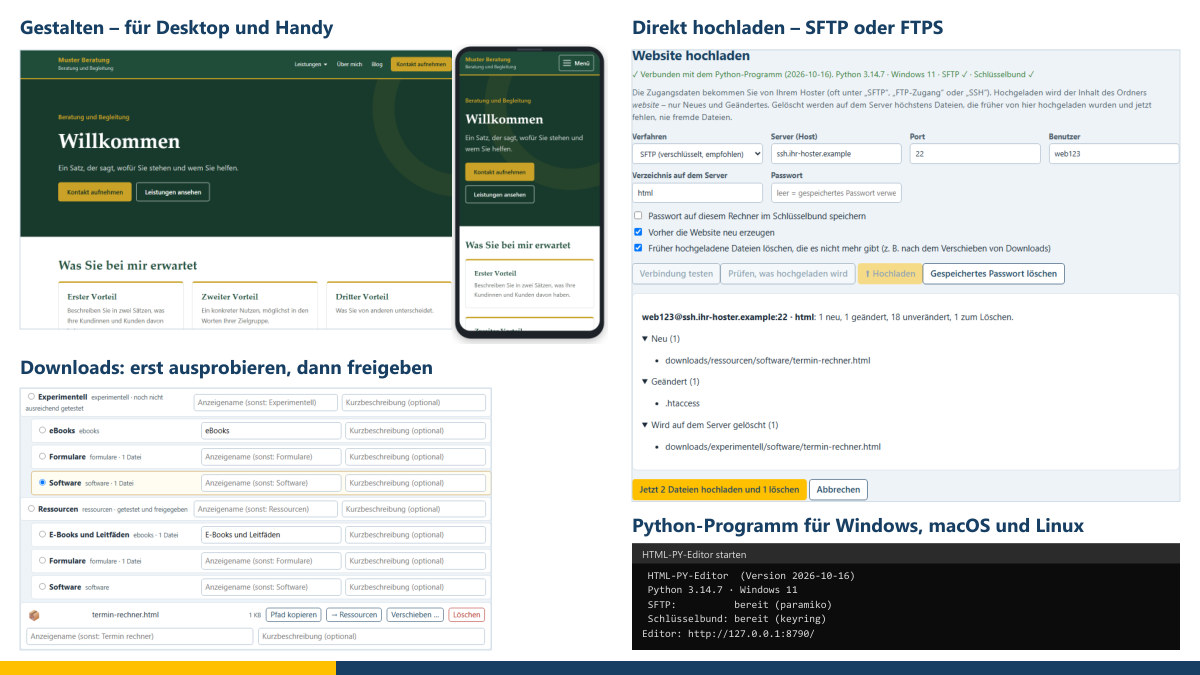
Many self-employed people and small businesses would like a lean website of their own: no website-builder subscription, no cookie banner, no database that constantly needs updating. That is why I built the FreeHTML editor – a website builder that runs entirely in the browser and produces a finished website from simple HTML files. One hurdle remained: the finished files had to be transferred to the web server with a separate program such as FileZilla or WinSCP. The new HTML-PY editor takes this step off your hands. It is the same editor – with an additional “Hochladen” (upload) tab that takes the website straight to your hosting provider via SFTP or FTPS. It runs on Windows 10 and 11, on macOS and on Linux. Further down, I describe step by step what you need to install for it.
At a glance
- Two editors, one project: the FreeHTML editor needs no installation; the HTML-PY editor can also upload. Both open the same projects – you can switch at any time.
- Design your website: colours, fonts, logo, menu with submenus, pages, blog, contact form and mobile view – following the proven structure of my own website.
- Upload directly: via SFTP (encrypted, recommended) or FTPS; only what is new or has changed.
- Secure from the start: on first contact, the editor shows the server's fingerprint; passwords are never stored in the project; files on the server that it did not put there are never deleted.
- Downloads in order: two areas, “Experimentell” (experimental) and “Ressourcen” (resources), with any number of subfolders; you move tested files with one click – the editor adjusts links and redirects itself.
- Several languages: German, English, Italian, Spanish, Portuguese, French, Dutch – and any other language you need. New pages, posts and menu items are created in all languages at once, marked “Translation pending” until you translate them. Visitors see the home page in the language of their browser, without any cookies.
- Interface in German or English: one click on “DE | EN” switches the editor – buttons, dialogs, messages and help. The start programs and the guide are available in both languages too.
- Older Macs too: runs on Windows 10 and 11, Linux and macOS – including Macs with an Intel processor such as the 2019 MacBook Pro, without Homebrew. The guide takes you through the setup step by step.
- Free and local: free of charge, free software under the GPL; everything runs on your computer.
Two editors for the same purpose
The FreeHTML editor is a single file. You open it in Google Chrome or Microsoft Edge, choose an empty folder – and get started. In the subfolder “website”, it generates the finished pages together with a sitemap, a blog feed and settings for the web server. The generated website sets no cookies and loads nothing from third-party servers – no Google Fonts, no maps, no tracking pixels.
The HTML-PY editor is the same editor, supplemented by a small Python program. This program starts the editor in your browser and takes care of uploading, because for security reasons a browser is not allowed to establish an SFTP or FTP connection. The program can only be reached from your own computer and connects exclusively to the server you enter.
Uploading in three steps
- In the Upload tab, you enter your hosting provider's access details once: protocol, server, port, user and the directory of your website. Most hosting providers call this “SFTP access”, “SSH access” or “FTP access”.
- Test connection. On the first SFTP contact, the editor shows the server's fingerprint. If possible, compare it with the information from your hosting provider. If it changes unexpectedly later, the program aborts for your protection. If the directory is wrong, the editor lists the folders that actually exist on the server.
- ⬆ Upload. If you wish, the editor regenerates the website first. It then shows what is new and what has changed, and uploads only after you confirm.
Next time, only what has changed since then is transferred. For this, the program remembers a checksum for each file. If you tick the relevant box, it also deletes files on the server that it uploaded itself earlier and that no longer exist in your website – files that you or your hosting provider placed there always remain untouched. You enter your password once each time you start the program. If you wish, the program stores it in your operating system's credential store (Windows Credential Manager, macOS Keychain or the keyring of your Linux desktop environment) – never in the project folder.
If your hosting provider only offers FTP, that works too; the editor then points out that FTP transmits passwords and files unencrypted.
Downloads: try out first, then release
Anyone who offers e-books, forms or small programs knows the problem: some things are finished, others are still being tested. Both editors therefore sort downloads into two areas – Experimentell (experimental) for things not yet sufficiently tested and Ressourcen (resources) for released items. New projects have the subfolders “ebooks”, “software” and “formulare” (forms) in both areas; you can create further subfolders as you like, even several levels deep.
Each folder and each file initially gets its own name as its display name. You enter a better or longer name in the editor – folders, addresses and links do not change as a result. Once a file has been tested, one click on “→ Ressourcen” is enough: the editor moves it, updates all links in pages, blog posts and the menu, and sets up a redirect from the old to the new address. This means bookmarks and search results still lead to the right place. On a page, the “Download-Liste” (download list) building block shows the files of a folder – with a heading for each subfolder, file size and short description.
A website in several languages
Customers from abroad, partners in the Netherlands or guests who prefer to read French: both editors create your website in several languages if you wish. English, Italian, Spanish, Portuguese, French and Dutch are included; you add any other language with its code, for example “pl” for Polish or “pt-br” for Brazilian Portuguese.
Here is how to proceed:
- Under ⚙ Settings › Languages, add the languages you want and choose a fallback language – usually English – for visitors whose language you do not offer. Your source language stays where it is; each additional language gets its own area, for example “/en/”. If you wish, the editor immediately creates copies of all existing pages and posts in the new language.
- At the top left, choose the language you are working in. The page list now shows which pages are translated, which are still waiting for you as “Translation pending” and which show “Review translation” because you have since changed their source.
- A copy initially contains the text and details of its source. You translate the heading, introduction, description for search engines and text in the same editing area as usual, and set the translation to “published” as soon as it is finished. This works in exactly the same way for blog posts.
- The menu, footer, contact band, blog title and the choices in the contact form exist for each language. The website's buttons, form fields and notices are already translated into the included languages; you enter your own wording under “Website texts”.
You create new pages, blog posts and menu items in the language you are currently working in – the editor creates them in all other languages at the same time, marked “Translation pending”. As long as you do not edit such a copy, it automatically takes over changes made to its source. The editor never overwrites versions that have already been translated; it only marks them with “Review translation”. And no copy goes online by accident: only when you set it to “published” does it count as a translation.
Until a translation is published, the website shows the existing version in that language with a short notice – so no link leads nowhere, and search engines do not index these pages. An overview shows at any time what still needs to be done.
The finished website gets a language switcher in the header, the correct language attribute for each page and, for search engines, the “hreflang” and “x-default” hints; the sitemap lists all language versions. Visitors who open your home page directly are greeted in the first of their browser's languages that you offer – otherwise in the fallback language. This requires neither cookies nor a consent banner: the web server decides on the basis of the language setting that the browser sends anyway. Anyone who deliberately chooses a different language via the language switcher stays there; subpages and search engines are not redirected. The rule is in the “.htaccess” file and works with hosting providers that use the Apache web server. For nginx, the editor shows a template after generating the website; with hosting providers that do not support custom server rules, visitors simply choose the language via the switcher. When uploading, the HTML-PY editor automatically transfers all language areas too.
Interface in German or English
Both editors are also available with an English interface. At the top right, “DE | EN” switches buttons, dialogs, messages and the help; if you have not chosen, the editor follows the language of your browser. Your website is not affected – you set its languages as described above. If you create a new website with the English interface, the template is in English straight away. The start programs of the HTML-PY editor speak the language of your computer, and the package contains an English guide “README.txt” next to the German “LIESMICH.txt”.
Everything else is bilingual too: the start programs, the windows for installing the modules, the messages of the Python program and the notes during uploading are available in German and English. And whatever the editor generates for your website follows its source language: if it is English, the explanations in the technical files – such as “.htaccess” and the style and script files – are in English, the email that the contact form sends you uses English labels, and download lists name the sub-folders in English (“Forms” instead of “Formulare”). For a German website, everything stays as it is.
Installation step by step
Which route suits you?
- Design only: if you upload the finished files yourself or someone else does it for you, the FreeHTML editor is all you need. You install nothing. Download the file, right-click it and choose “Open With” › “Google Chrome” or “Microsoft Edge”. On a Mac, a simple double-click usually opens Safari – and the editor does not work there.
- Design and upload: for the HTML-PY editor, you set up Python once. The first time, this takes about 20 to 30 minutes. The following steps guide you through it; the file “README.txt” in the package describes everything in even more detail, including help with problems (the German version is “LIESMICH.txt”).
What you need
- Windows 10 or 11, a Mac with macOS 13 “Ventura” or later – including Macs with an Intel processor – or Linux with a graphical desktop. With macOS 10.15 to 12 the editor usually still runs, but Chrome and Edge no longer receive security updates there. On a Mac you can see your version under the Apple menu › “About This Mac”; on Windows, press the Windows key, type
winverand press Enter. - Google Chrome or Microsoft Edge. Safari and Firefox are not allowed to edit folders on your computer and are therefore not suitable.
- An internet connection once (about 100 MB are downloaded) and, on a Mac, the password of your user account.
- For uploading, your hosting provider's access details (see above).
For uploading, the program needs three small Python modules: paramiko for SFTP, keyring for storing the password securely and certifi with up-to-date root certificates for FTPS. The included “Module installieren” (install modules) script puts them into a separate environment in the package folder – the rest of your system remains untouched. The editor still works without these modules; you can then upload via FTPS.
Windows 10 and 11
- Install Python: on python.org/downloads, click the link “standalone installer for Python 3.…” below the large yellow button and open the downloaded file. In the first window, tick “Add python.exe to PATH” at the very bottom and click “Install Now”. When “Setup was successful” appears, click “Close”.
- Unpack the package: in the “Downloads” folder, right-click “html-py-editor.zip” › “Properties”, tick “Unblock” under “Security” (if it is there) and click “OK”. Then right-click › “Extract All…” › “Extract”.
- Install the modules: in the unpacked folder “html-py-editor”, double-click “Module installieren (Windows)” (install modules). If Windows reports “Windows protected your PC”, click “More info” › “Run anyway”. Wait until the black window reports “Done - the modules are installed.”
- Start: double-click “HTML-PY-Editor starten (Windows)” (start the HTML-PY editor). A black window opens, followed by the editor in the browser. Leave the window open while you are working; close it to quit.
Mac – including older models with an Intel processor
You need neither Homebrew nor Apple's developer tools. The steps are the same for Intel Macs such as the 2019 MacBook Pro and for Macs with Apple silicon. You enter a few commands in Terminal: press cmd and the space bar together, type “Terminal” and press Return. Copy each command on its own, paste it with cmd + V and press Return. Many commands display nothing if everything has worked.
- Install Chrome if it is missing: on google.com/chrome, click “Download Chrome”, open the file “googlechrome.dmg” and drag Chrome into the “Applications” folder.
- Install Python: on python.org/downloads, click the yellow button “Download Python 3.…”, double-click the file in the “Downloads” folder and follow the installer (“Continue”, “Agree”, “Install”, password, “Close”). It runs on macOS 10.15 and later, including Intel Macs. Afterwards, double-click “Install Certificates.command” once in the Finder window that has opened.
- Unpack the package: in Terminal,
ditto -x -k ~/Downloads/html-py-editor.zip ~/html-py-editor-paket - Remove the block:
xattr -dr com.apple.quarantine ~/html-py-editor-paket– macOS attaches a block to downloaded files that would otherwise get in the way when starting. - Install the modules:
bash ~/html-py-editor-paket/html-py-editor/module-installieren.sh– wait until “Done.” appears (on a Mac set to German: “Fertig.”). - Start:
bash ~/html-py-editor-paket/html-py-editor/html-py-editor-starten.sh– Chrome opens the editor. Leave Terminal open while you are working. Next time, the up arrow key ↑ in Terminal brings the command back.
A note for Intel Macs: new versions of the “cryptography” module, which paramiko needs for SFTP, have no longer been available ready-built for Intel Macs since June 2026. The installation script therefore automatically uses the latest version that is available ready-built there. Without this trick, pip would try to build the module itself – and that fails without developer tools.
The files ending in “.command” can also be opened by double-click. If macOS reports that the file cannot be opened, use the command in Terminal – it always works.
Linux
- Install Python: on Debian, Ubuntu and Mint,
sudo apt install python3 python3-venv(no characters appear while you type the password – that is normal). Fedora:sudo dnf install python3, openSUSE:sudo zypper install python3, Arch:sudo pacman -S python - Browser: install Google Chrome or Chromium if neither is present.
- Unpack the package:
python3 -m zipfile -e ~/Downloads/html-py-editor.zip ~/html-py-editor-paket - Install the modules:
sh ~/html-py-editor-paket/html-py-editor/module-installieren.sh - Start:
sh ~/html-py-editor-paket/html-py-editor/html-py-editor-starten.sh
On Linux, keyring only stores the password if your desktop environment provides a keyring (for example GNOME or KDE); otherwise you enter it once per session.
How to check that it has worked
At the top of the black window or Terminal you see the lines “SFTP: ready (paramiko)” and “Keychain: ready (keyring)” (on a computer set to German: “bereit”). The browser shows “Welcome to the HTML-PY-Editor” – without the red line “The Python program is not connected”. If this line does appear, you opened the HTML file directly; start the editor via the start script instead.
If something does not work
- “Python … nicht gefunden” (not found): Python is not installed yet, or the window was already open beforehand. Install Python, close the window and start again.
- On a Mac, a window offers the “command line developer tools”: click “Cancel”. You do not need them; Python from python.org is enough.
- “No such file or directory” when unpacking on a Mac: Safari may already have unpacked the ZIP file itself. In that case, step 3 is
ditto ~/Downloads/html-py-editor ~/html-py-editor-paket/html-py-editor. - “Operation not permitted” on a Mac: under “System Settings” › “Privacy & Security” › “Files and Folders”, allow Terminal access to the “Downloads” folder.
- “Die Installation hat nicht geklappt” (the installation did not work): usually the internet connection is missing or a company network blocks access. Check the connection and repeat the step.
- Windows reports that the modules cannot be loaded: the folder is nested too deeply. Move it, for example, to “Documents” and install the modules there again.
- The editor opens in Safari or Firefox: open the address from the window (for example http://127.0.0.1:8790/) in Chrome or Edge.
Removing it again
Close the editor's window and delete the unpacked folder. The program remembers what has already been uploaded in %APPDATA%\HTML-PY-Editor on Windows, in ~/Library/Application Support/HTML-PY-Editor on a Mac and in ~/.config/HTML-PY-Editor on Linux – these folders can go too. You can keep Python itself or remove it in the usual way for your system; the file “README.txt” describes both step by step.
For advanced users: manual installation
If you prefer to do it yourself, create a separate environment in the package folder and install the modules from the list provided:
- Windows:
py -m venv .venvand then.venv\Scripts\python.exe -m pip install --prefer-binary -r requirements.txt - macOS and Linux:
python3 -m venv .venvand then.venv/bin/python3 -m pip install --prefer-binary -r requirements.txt
The --prefer-binary option makes pip use ready-built versions. The start scripts automatically use the environment in the “.venv” folder if it exists, otherwise the system's Python. In a company network with a proxy server, it is best to clarify internet access with your IT department.
What you should know
The HTML-PY editor is in my “Experimentell” (experimental) area: it has been tested against my own test servers – SFTP, FTPS and FTP, uploading, deleting, cancelling – but not yet with every hosting provider. So try out uploading first with a test domain or an empty subdirectory, and back up your project folder regularly. The redirects for moved downloads are in the “.htaccess” file; they work with hosting providers that use the Apache web server, i.e. most offers for small websites.
Your content stays on your computer and on your server. The program transmits nothing to me or to third parties; it only communicates with the server you enter yourself. The legal notice and privacy policy of your website are only prepared as a framework in the editor – fill them in completely and have them checked.
The FreeHTML editor and the HTML-PY editor are free software (GPL-3.0-or-later) and are provided without warranty. You yourself are responsible for the content of your website and your choice of hosting provider.
Conclusion
Your own website need be neither expensive nor complicated. With the FreeHTML editor you design it in the browser; with the HTML-PY editor you also get it online straight away – on Windows, macOS and Linux. Both are free of charge: open the FreeHTML editor or download the HTML-PY editor (ZIP). If you would like to organise your digital presence and the tools behind it more clearly overall, I will be happy to support you with IT-supported organisational consulting. Talk to me in a free initial consultation.
Sources: Python Software Foundation, python.org (downloads, “Using Python on macOS” and documentation on venv). – Python Package Index: cryptography (available packages per platform). – Google: Chrome system requirements. – PEP 668: Marking Python base environments as “externally managed”. – Paramiko, SSH library for Python (paramiko.org). – RFC 4217: Securing FTP with TLS. – RFC 9110, Section 12.5.4: Accept-Language. – Google Search Central: Localized versions of your pages (hreflang). – Apache HTTP Server, documentation on mod_rewrite.
Thinking further
You can find more on this topic under resources and downloads – or talk to me directly in a free initial consultation.
Comments
Comments are published immediately with your name. Only the name, title, comment text and time are stored – see the privacy policy.
Loading comments …