
This article was created with the AI assistant Claude and published by Peter Hoenig.
A project is rarely planned by one person alone. The project manager sets work packages and dates, the team books time and reports how far it has got, and anyone who only follows the project wants to see the current state at any time. With a single project file this only works one after the other: whoever has it open locks everyone else out. That is why my project management tool now works together in the MC4Y productivity suite: everyone who opens a project from the storage on the server works in it at the same time.
How do several people work in the same project at the same time?
You open the project from the suite’s storage as usual. A narrow bar below the views then shows “Shared project”, your role, who is in the project right now and whether everything has been saved. You no longer need “Save”: the tool sends every change straight away – not the whole file, but exactly the entry you changed, such as a work package, a time booking or a comment. It fetches what others change every few seconds and immediately when you return to the window. While you are typing in a field, the change from outside waits until you leave the field.
What happens when two people change the same thing?
Then the person who saves last does not simply win. For every entry the server remembers which state a change is based on. If it is based on an older state, the server does not accept it but reports back: the window “Changed at the same time” shows who changed the entry and when, with your own change next to it. “Reload and set again” takes the current state and applies your fields to it once more – so both changes are kept. “Take the state from the server” discards your change to this entry. A request is accepted completely or not at all; there are no half-saved changes.
Which roles are there, and where do they come from?
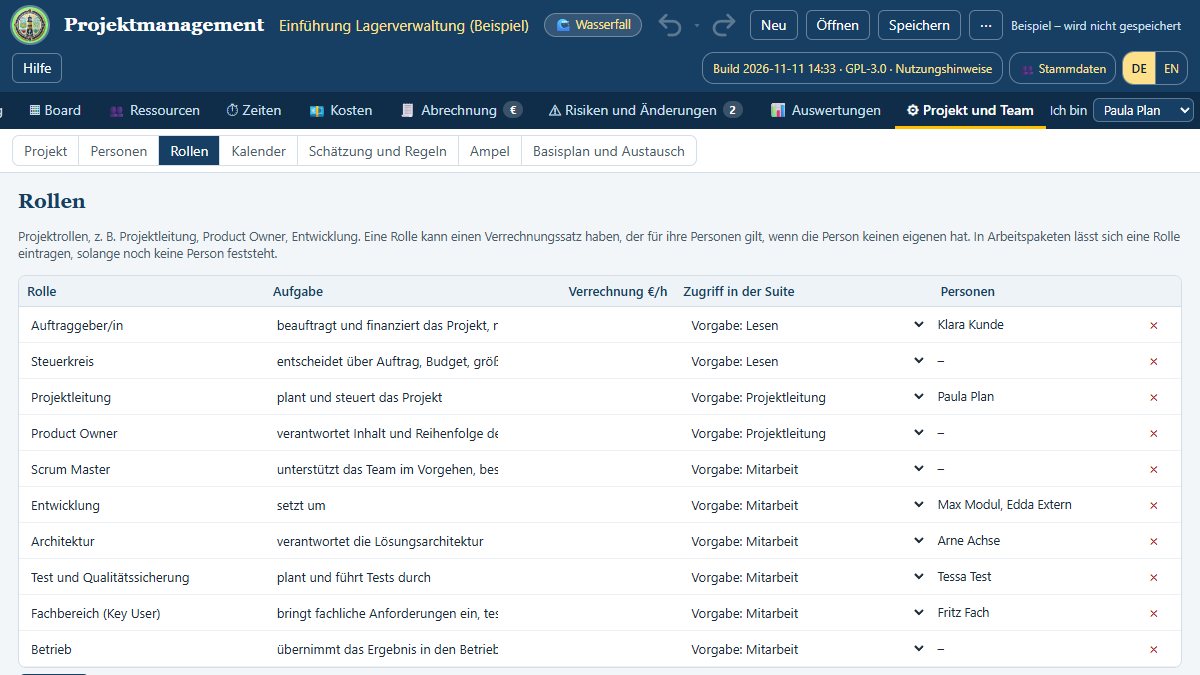
The role follows from two things that already exist. The right in the suite sets the limit: anyone who may only read there also reads in the project; full access is always project manager. Within “Read and write” the project decides: your suite account belongs to a person in the project if its master-data person is linked to that person or the name is the same. The person in the field “Project manager” has full access; otherwise the access of their project roles applies – under “⚙ Project and team” › “Roles” in the new column “Access in the suite”. Anyone who is not part of the team reads. People thus come from the team or the master data as before, never as free text.
What may a team member do – and what not?
A team member books their own time, sets status, progress, actual dates and notes of the work packages and backlog items they are responsible for, ticks off the definition of done and writes comments. Planning – creating work packages, changing durations and dependencies, maintaining people or costs – remains with the project manager. The fields for this are locked, and the server checks it again with every change. Anyone who only reads sees all views and reports but cannot change anything.
And the project analysis, tasks and accounting?
In the suite the project analysis loads all projects you may read directly from the server – portfolio, dates, utilisation and costs across all projects. Work packages and backlog items appear in the suite’s tasks as before; if someone sets a status there, it arrives in the shared project. Invoices handed over now also show the dunning level when the accounting tool has sent a reminder for an invoice – and so does the customer navigator for the customer.
Where is the data stored?
The shared project is stored in the storage of your own suite server, like any other project file. In addition the suite remembers which entry was last changed by whom and who has the project open right now; comments are stored in the project itself. There are no third-party services. Time recording and utilisation reports can be used to monitor performance and behaviour – in companies with a works council their introduction is subject to co-determination.
Conclusion
Save once, and everyone sees the same state: that turns a project file into a project the whole team works on. The project manager keeps the planning in hand, the team reports its own progress, and nobody overwrites anyone else’s work. All examples in the tool are fictitious. The tool is free of charge and also runs without the suite: open project management.
Open or download the tool
- Project managementOpen Download (1.2 MB)
Thinking further
You can find more on this topic under resources and downloads – or talk to me directly in a free initial consultation.
Comments
Comments are published immediately with your name. Only the name, title, comment text and time are stored – see the privacy policy.
Loading comments …