
This article was created with the AI assistant Claude and published by Peter Hoenig.
Anyone who wants to run a project properly from a commercial point of view must be able to say at the end: what did it cost – and on which cost centre, in which cost type? In many small and medium-sized companies this is where duplicate maintenance begins. The project knows its own cost types, accounting uses others, and the cost centre sits somewhere in a spreadsheet. That is why I have extended my project management tool so that cost types and cost centres are maintained in one place only: in the master data.
How do you assign costs to a cost centre and cost type?
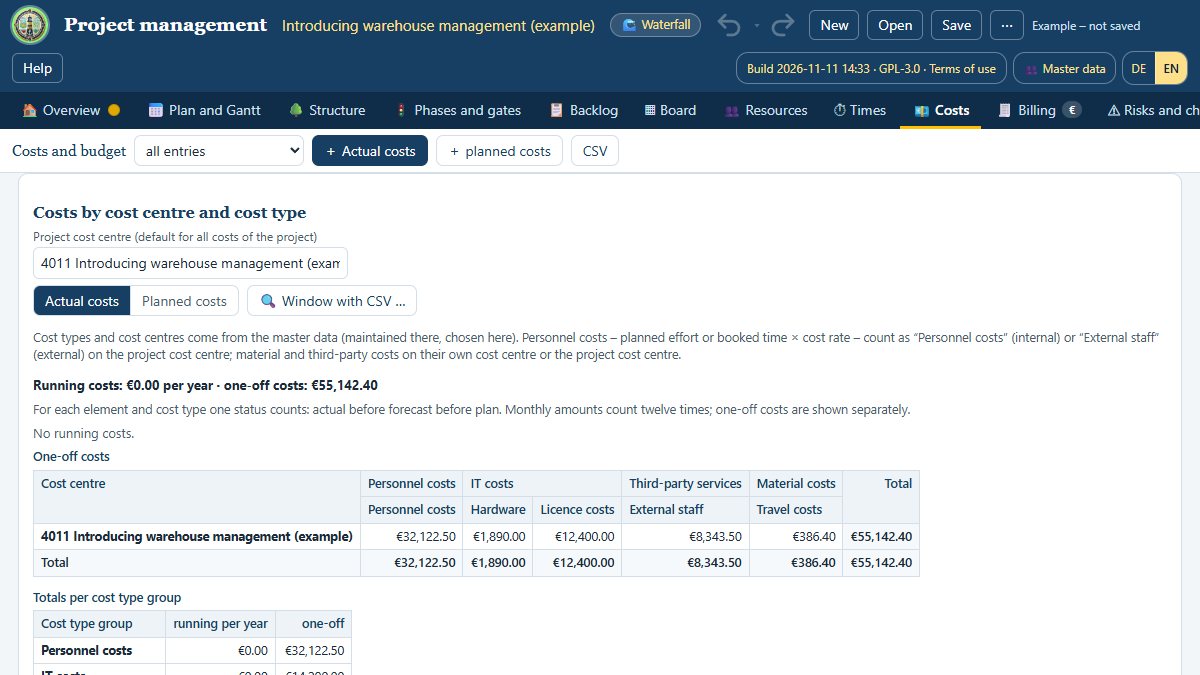
Under “💶 Costs” there is a new section “Costs by cost centre and cost type”. At the top you enter the project cost centre, for example “4711 Customer portal project”; you will find the same field under “⚙ Project and team”. For each expense you choose the cost type – licence costs, hardware, travel expenses or one of your own – and, if needed, a different cost centre in the “Cost centre” column of the cost table. If the master data tool is set up in this browser, the field suggests matching entries as you type; Ctrl+Space opens the selection from the master data. If a cost type is missing, you create it directly in the master data with “+ … create”. Without master data the tool works as before and offers the usual cost types as suggestions.
What does the analysis by cost centre and cost type show?
The analysis shows a table: the rows are the cost centres, the columns the cost types, grouped by cost type groups such as personnel costs, IT costs or third-party services. A button switches between actual costs and planned costs. “🔍 Window with CSV …” opens the same analysis in a large window, with the list of all entries and the export as a CSV file. In the report “Costs and earned value”, plan and actual per cost centre and cost type are shown side by side, in print and in the CSV as well. The CSV export of the cost table has three additional columns: “Cost type (master data)”, “Cost centre no.” and “Cost centre”. The existing columns remain unchanged.
What changes for existing projects?
The existing reports calculate exactly as before. You open older project files as usual: their cost types are assigned to the cost types of the master data when the file is opened, without losing anything. And a new project file can also be opened with an older version of the tool.
How do you see the costs across all projects?
The project analysis shows the same analysis under “💶 Costs” across all loaded projects. So you can see at a glance which cost centre carries which costs – planned and actual. If the master data tool is connected, the names maintained there appear; otherwise the names from the project files.
What reaches accounting and the task lists?
Invoices that you hand over to the accounting tool now carry the project cost centre and, per line item, the cost type, provided it is unambiguous. If an expense that is passed on to the client differs from the project cost centre, its own cost centre is stated on the line item. Older versions of the accounting tool still accept the invoice; they simply leave the new details aside.
From the risk register you use “📋 Measures as tasks …” to hand over the measures of open risks as tasks: in the MC4Y Suite to the tasks, otherwise to the Kanban board in the same browser. Once a measure is done there, the window shows this status the next time you hand over. Work packages and backlog items are shown as tasks by the suite anyway – so they are not handed over a second time.
Conclusion
Allocating costs correctly once instead of copying them three times: that is the real benefit. The project supplies the figures, the master data the terms, accounting the documents – and every analysis speaks the same language. All examples in the tool are fictitious; your own data stays on your computer – in the MC4Y Productivity Suite on your own server. The tool is free of charge, needs no sign-up and also runs on tablets and phones: Open the project management tool.
Open or download the tool
- Project managementOpen Download (1.2 MB)
Thinking further
You can find more on this topic under resources and downloads – or talk to me directly in a free initial consultation.
Comments
Comments are published immediately with your name. Only the name, title, comment text and time are stored – see the privacy policy.
Loading comments …