
This article was created with the AI assistant Claude and published by Peter Hoenig.
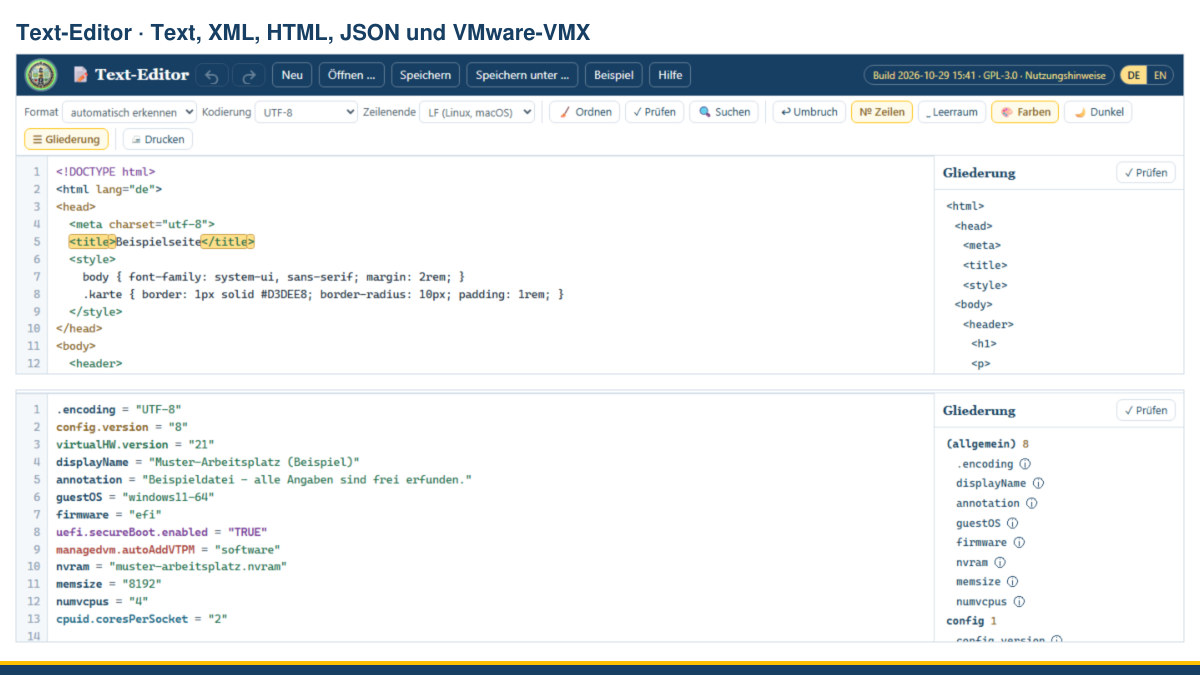
Anyone who has to open a configuration file soon faces the same question: which program? The Windows editor shows everything in grey, a development environment is overkill for three lines, and with online editors you never quite know where the file is sent. Yet it is often a small matter – one value in an XML file, one bracket in a JSON file, one line in the VMX file of a virtual machine. That is why my tools now include a text editor that shows the parts in colour and runs in your browser.
At a glance
- Five formats: plain text (ASCII/UTF-8), XML, HTML, JSON and VMware VMX – the editor recognises the format itself.
- Matching tags in one colour: an opening tag and its closing tag always share the same colour; the pair under the cursor is highlighted as well.
- Missing parts stand out: tags without a counterpart are underlined with a red wavy line, duplicate VMX keys with dots.
- Tidy and check: indent according to the nesting, reformat JSON, check the structure and jump to the spot.
- Find and replace matching case, whole words only or as a regular expression.
- Encoding and line endings are recognised and kept: UTF-8, Windows-1252, ISO-8859-1, UTF-16, LF/CRLF/CR.
- Free and local: free of charge, free software under the GPL, nothing is transmitted.
Why colour really helps here
In a deeply nested file it is easy to lose track of which closing tag belongs to which opening one. The editor therefore colours by nesting depth: what belongs together has the same colour. If the cursor is inside a tag – or simply somewhere between a tag and its counterpart – both are highlighted in yellow, and the status bar names the lines: “<main> – opens on line 16, closes on line 33”. Ctrl+M jumps there and back.
The same applies to curly and square brackets in JSON. If one is missing, you can see at once where the colours stop matching – and the check gives you the line and column.
Tidying without losing anything
“Tidy” indents XML and HTML according to their nesting and reformats JSON. The content itself stays untouched: only stretches that consist purely of spaces and line breaks are replaced. Multi-line text inside an element, a CDATA section, a comment and the content of script and style remain exactly as they were. That may sound obvious, but it is not – many formatters squeeze such passages into a single line and thereby change data.
The check then tells you what is still wrong: tags without a counterpart, JSON errors with their position, invisible control characters, mixed line endings or lines ending in spaces. Clicking a message jumps to the spot.
A speciality: VMware VMX files
The configuration of a virtual machine is a plain text file with lines of the form key = "value" – and for that very reason prone to typing mistakes. The editor treats it as a format of its own:
- Entries are coloured by group (
scsi0,ethernet0,sata0…), so lines that belong together are recognisable even when they are scattered across the file. - Duplicate keys are underlined with dots and reported by the check with both line numbers. This is the most common mistake in VMX files that have grown over time: you add
memsizeat the bottom while one is already set at the top. - For many well-known keys the outline shows an explanation – what
virtualHW.versionmeans, whatuefi.secureBoot.enabledstands for, or whyuuid.bioschanges after a VM has been copied. - The check also reports when
.encodingis not on the first line ordisplayNameis missing.
One important note: the editor never changes anything by itself and only writes when you save. Even so, the old rule applies to files of running systems – make a copy first, then edit.
Encoding and line endings
When opening a file, the editor reads the byte order mark (BOM) and the content and recognises UTF-8, Windows-1252, ISO-8859-1 or UTF-16. It also remembers whether the file uses LF, CRLF or CR, and writes it back the same way. That matters for VMX files on Windows, but also for older configuration files that would otherwise be rewritten silently. You can change both before saving if that is what you want.
Saving writes straight back into the same file in Chrome and Edge; in other browsers the file is downloaded. You can open a file with the button, with Ctrl+O, or simply by dragging it onto the window.
Made for everyday work
On top of that come the things you expect from an editor: line numbers, optional line wrapping, tabs and trailing spaces made visible, indenting and outdenting several lines with Tab and Shift+Tab, jumping to a line with Ctrl+G, a light and a dark display, and undo and redo via the large arrows at the top. With very large files the colour display switches itself off so that typing stays smooth.
Depending on the format, the outline on the right shows the element tree, the JSON keys, the VMX groups or the headings of a Markdown text – a click jumps to the spot.
Your data stays with you
The editor is a single HTML file. You can download it and use it offline; it loads nothing and sends nothing. Whatever you edit stays on your device. As soon as you make a change, the browser keeps the current state so that nothing is lost after a crash – simply opening the tool stores nothing.
The text editor is free of charge and available as free software under the GPL: open the text editor. If you would like to put your IT landscape and the processes around it in order as a whole, I am happy to support you with IT-supported organisational consulting – get in touch for a free initial consultation.
VMware and VMware Workstation are trademarks of VMware LLC (Broadcom Inc.) and are used here only to describe the file format. This tool is not part of VMware and is not supported by them.
Thinking further
You can find more on this topic under resources and downloads – or talk to me directly in a free initial consultation.
Comments
Comments are published immediately with your name. Only the name, title, comment text and time are stored – see the privacy policy.
Loading comments …