
This article was created with the AI assistant Claude and published by Peter Hoenig.
By the end of the year, every figure is already in the books – and yet it all has to be entered once more in the tax return: line by line, box by box, in Mein ELSTER, the German tax authorities' online portal, or in tax software. Swap two amounts or skip a line, and you often only notice when the tax assessment arrives. I first built a helper for this for my own tax return. Now it is part of my free accounting tool for everyone – in the browser and in the MC4Y Suite.
Can QuickSteuer import data from another bookkeeping program?
That was the first question, before anything was built. The manufacturer's product descriptions – the comparison of QuickSteuer and QuickSteuer Deluxe and the QuickSteuer 2025 data sheet – answer it clearly: QuickSteuer takes over data from the previous year, from ElsterFormular, from the pre-filled tax return (VaSt) and from retrieved tax assessment data. The Deluxe edition has its own calculator for the cash-basis income statement, including Annex EÜR. An import of values from other bookkeeping programs, for example as a CSV or QIF file, is not mentioned.
Other common tax programs usually offer no open import for third-party bookkeeping data either. So my accounting tool cannot produce a file that your tax software would “simply read in”. What remains is transferring the values – but without retyping and without hunting for them.
Which values does the accounting tool compile?
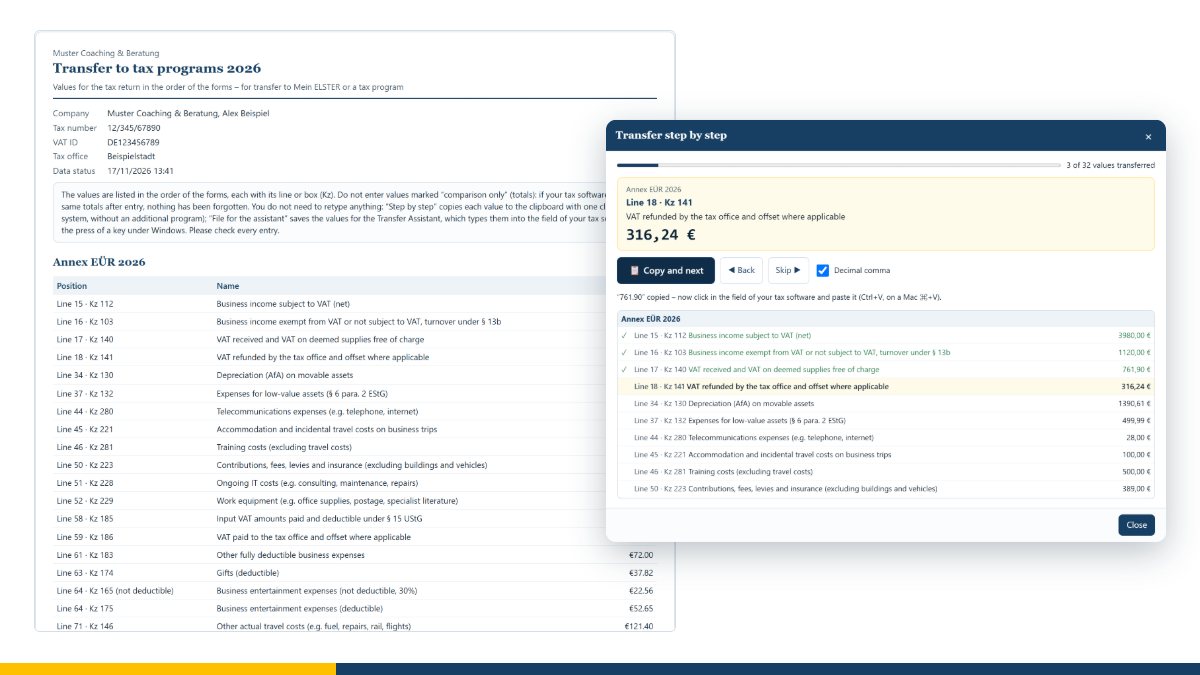
In the “Reports” tab you will find the report “Transfer to tax programs”. It lists all values of a financial year in the order of the forms:
- Annex EÜR (Anlage EÜR, the form for the cash-basis income statement): every value with line and box number (Kennzahl), following the official form for the year (2025 or 2026). Non-deductible portions – such as the 30% of a business meal – come before the deductible amount, just as the form asks for them.
- Annual VAT return (Umsatzsteuererklärung): the annual values with their description and the box number from the advance return, tax bases in whole euros, plus the total of the prepayments from the advance returns marked as transmitted. For small businesses exempt from VAT (Section 19 UStG), this part is left out.
- Private details: per person and annex – pension and insurance contributions, special expenses, childcare or extraordinary costs, for example. Donations are listed individually with recipient and amount; tradespeople's services and household-related services individually with the type of service, the invoice amount and the labour costs.
Totals such as business income, business expenses, profit and the VAT for the year are marked “comparison only”. You do not enter them – you compare them: if your tax software shows the same totals after you have entered everything, nothing has been missed. You can also save the list as a PDF and keep it next to your screen.
How does “Step by step” work?
“📋 Step by step …” opens a window above the report that guides you through all values:
- The window shows the next value with its form, position (line and box number), description and amount.
- A click on “📋 Copy and next” – or simply the Enter key – puts the value on the clipboard and moves on to the next one.
- In your tax software or in Mein ELSTER, click into the matching field and paste the value with
Ctrl+V, on a Mac with⌘+V.
A bar shows how many values have been transferred so far. “◀ Back”, “Skip ▶” or a click in the list takes you to another value. If your program expects a decimal point rather than a comma, switch off “Decimal comma”. Progress lasts as long as the page is open; nothing is stored. Should the browser refuse to copy, the value is shown selected, and you copy it with Ctrl + C.
This route needs no extra program. It runs in the browser on Windows, macOS and Linux, and you can operate it with your finger on tablets and phones too.
What does the Transfer Assistant do on Windows?
If you have many values to transfer, Windows offers an even more convenient route. “📤 File for the assistant” saves all values as a *.uebertragung.json file in your Downloads folder – and, if you store your books in a folder or in the MC4Y Suite, also in that year's “Berichte” (reports) folder. A window then explains the next steps:
- Download the Transfer Assistant once (free of charge, free software under the GPL), unpack it and double-click
Uebertragungs-Assistent.bat. If Windows asks whether to run the downloaded file, only confirm if the package comes from my website. - In the assistant, choose “Latest file” – it looks in your Downloads folder – or “Open file …”.
- The assistant shows the next value in a small window that always stays on top. Click into the field shown in your tax software and press
F8: the value is typed in as if you had entered it yourself, and the assistant moves on to the next one.
Under “Settings” you can choose a different key, pasting via the clipboard instead of typing, selecting the old field content first (Ctrl + A), a Tab afterwards, and a decimal point or comma; “DE | EN” at the top right switches the language. The assistant never types into its own window, and it waits until you have released Shift, Ctrl and Alt. It records every entry with time, window title, position and value in a log file next to the transfer file.
Three tips from its guide: try the assistant in Windows Notepad first. If a field stays empty, choose “paste (clipboard)”. And if your tax software runs with administrator rights, the assistant has to be started the same way.
What do you need?
- Windows 10 or 11.
- Python 3.8 or later for Windows – free from python.org (“Install for current user” is enough) or from the Microsoft Store, in both cases without administrator rights. The assistant needs no further packages.
- Nothing else: no autostart, no changes to Windows, no internet connection.
Why is there no ready-made .exe file?
Antivirus programs often flag an unsigned program that sends keystrokes to other windows as suspicious, and Windows warns the first time it starts. With Python, the complete source code is open in front of you – you can read for yourself what the assistant does. If you would rather not install Python, use “Step by step”; the result is the same, with just one more click per value.
And the advance VAT return?
For the advance VAT return (Umsatzsteuer-Voranmeldung) there is an official route without retyping: in the report “Advance VAT return”, “🧾 ELSTER file” creates a file for the XML import in Mein ELSTER. It only pre-fills the form there – you check and submit it yourself. For this, you enter the federal state of your tax office once in the settings; the tool then converts your tax number into the 13-digit ELSTER format. More on this in the article Accounting in the browser: from receipt to VAT return.
What happens to your tax data?
Everything stays on your computer: the accounting tool runs in your browser, the assistant on your Windows computer. Neither transmits anything to me or to anyone else. Three things are still worth knowing:
- Whatever is on the clipboard can be read by other programs on your device until you copy something else.
- The transfer file and the log contain tax data. Keep them safe and delete them once you no longer need them.
- The assistant remembers the key, input mode, window size, language and the last folder used in
%APPDATA%\MC4Y\uebertragungs-assistent.json.
The details are in my privacy policy.
What has been tested – and what has not?
The values were recalculated by hand for a sample year: report, file and “Step by step” match in Edge, in WebKit (the engine behind Safari), in Firefox and in the MC4Y Suite. On Windows, the assistant typed into a test window of its own with two Python versions. Typing into QuickSteuer itself and into Mein ELSTER has not been tried yet – every program handles its input fields a little differently. So please try the assistant in Windows Notepad first and check every entry.
The accounting tool and the Transfer Assistant are aids for filling in your own German tax return. They are not tax advice, not a program certified by the tax authorities, and they send nothing to ELSTER or to a tax office. I check my own figures before I file them – please do the same with yours. What counts are the official forms and, if in doubt, the advice of your tax adviser (as of November 2026).
Frequently asked questions
Does this replace my tax adviser?
No. The accounting tool compiles your values and gets them into your tax software without retyping. Whether an amount belongs in a particular line and how it is to be treated for tax purposes is for you or your tax adviser to judge.
Does it work with Mein ELSTER instead of tax software?
Yes. “Step by step” copies the values for the fields in Mein ELSTER in exactly the same way. The assistant types into whichever field is active, in the browser too; it has not yet been tried in Mein ELSTER, though.
Does it work on a Mac or on Linux?
“Step by step” does – there you paste with ⌘ + V or Ctrl + V. The Transfer Assistant is a Windows program.
Why are some values marked “comparison only”?
These are totals such as business income, business expenses and profit, which your tax software calculates itself. If its totals match these after you have entered everything, you have not missed anything.
Why don't the box numbers of the annual VAT return always match?
The list shows the box numbers of the advance VAT return, because that is how the accounting tool organises turnover. In the annual return, some lines and even some box numbers differ. Please assign the values there by their description.
What does it cost?
Nothing. The accounting tool and the Transfer Assistant are free of charge, free software under the GPL and need no sign-up. You will find the accounting tool under Experimental – to try out, and detailed operating instructions in the user manual.
Conclusion
The tax return is still yours to make – the retyping no longer is. The accounting tool arranges the values the way the forms ask for them, “Step by step” carries them across on any system with one click per value, and on Windows the assistant types them in at the press of a key. If you would like to simplify and sensibly digitalise the administrative processes in your company as a whole, I will be glad to support you with IT-supported organisational consulting and process management. Talk to me in a free initial consultation.
Sources: Haufe-Lexware GmbH & Co. KG: product comparison QuickSteuer and QuickSteuer Deluxe (version 2023) and QuickSteuer 2025 data sheet, retrieved in November 2026. – German Federal Ministry of Finance: Annex EÜR forms 2025 and 2026. – ELSTER: help on the XML import of the advance VAT return in Mein ELSTER. – German Income Tax Act (Einkommensteuergesetz, EStG), Sections 4(3), 10b and 35a.
Trademark notice: “Lexware” and “QuickSteuer” are trademarks of their respective owners; Lexware QuickSteuer is a product of Haufe-Lexware GmbH & Co. KG. I mention these names for descriptive purposes only. The accounting tool and the Transfer Assistant are not products of this company, have not been reviewed by it and use no interface of its programs. ELSTER is also mentioned for descriptive purposes only. Windows and Microsoft Store are trademarks of Microsoft Corporation; Python is a trademark of the Python Software Foundation.
Open or download the tool
- Transfer Assistant for the bookkeeping tool (Windows, ZIP)Download (22 KB)
Thinking further
You can find more on this topic under resources and downloads – or talk to me directly in a free initial consultation.
Comments
Comments are published immediately with your name. Only the name, title, comment text and time are stored – see the privacy policy.
Loading comments …